Members
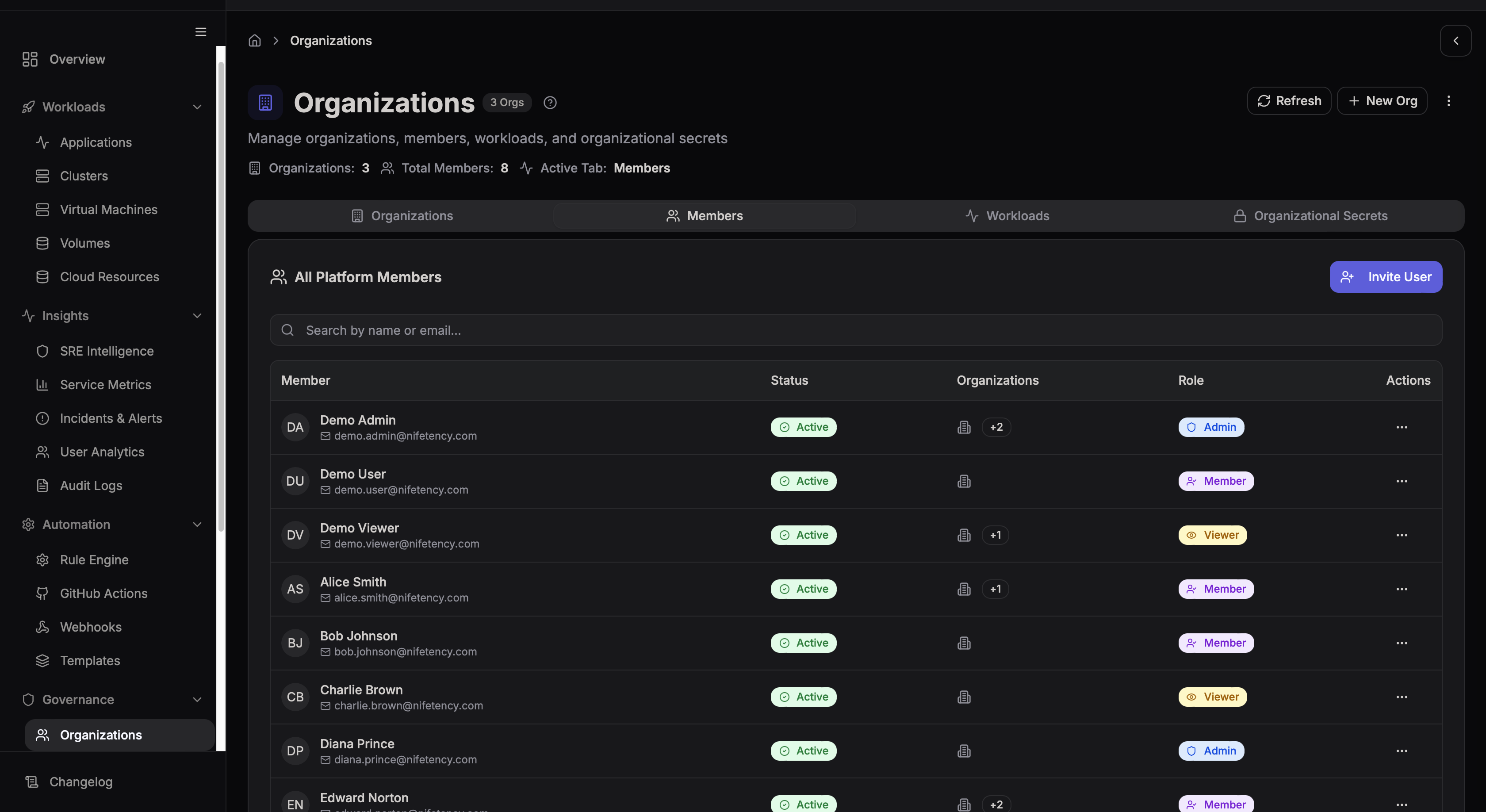
The Members tab under Organizations allows you to manage all users who are part of your organization. You can view member details, assign roles, and invite new users to collaborate.
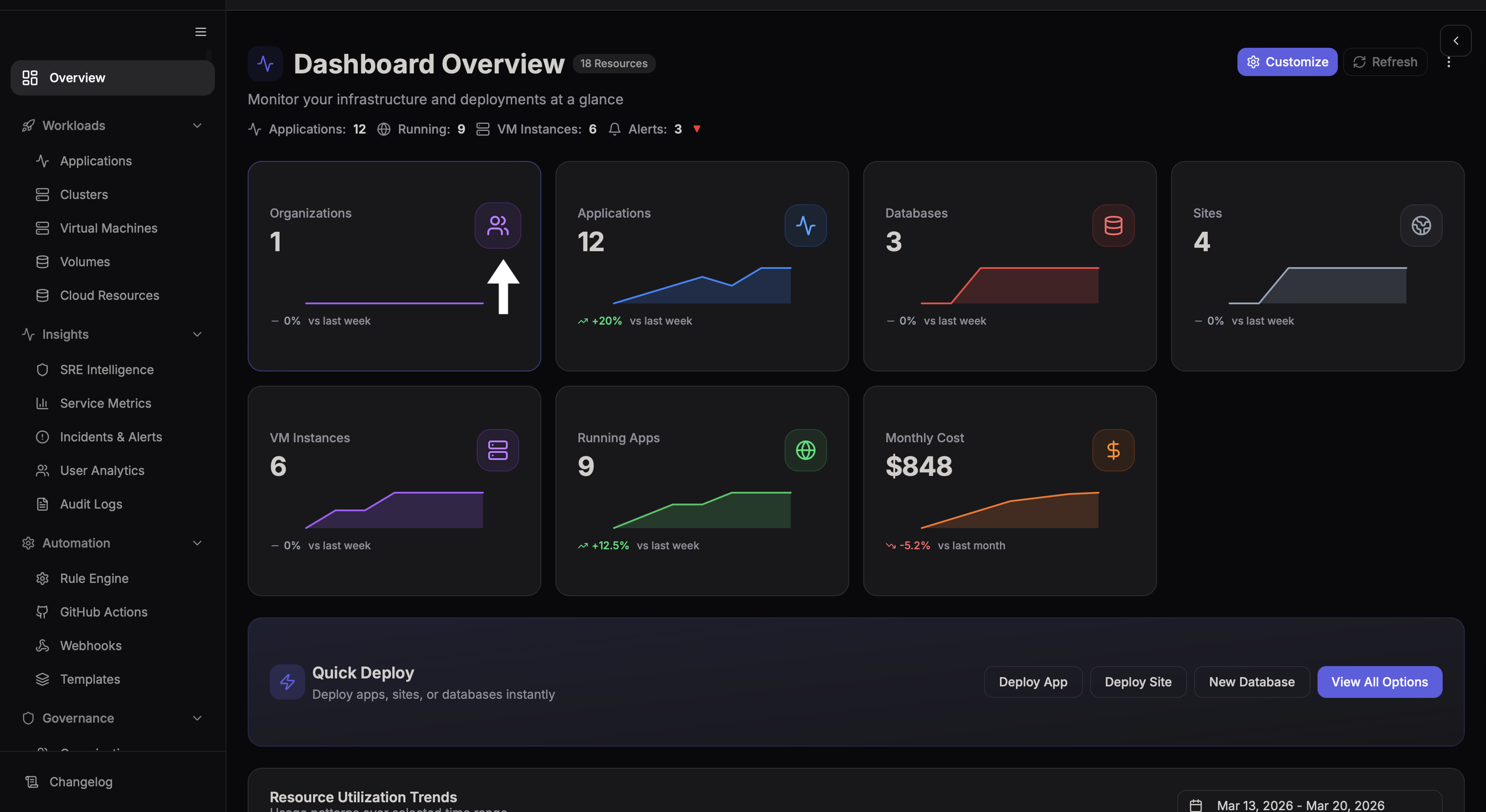
Accessing Members
- Navigate to Overview → Organizations
- Select your organization
Members Overview
Click on the Members tab to see a centralized view of all users in the organization.
Key Information Displayed
| Column | Description |
|---|---|
| Member | User's name and email address |
| Status | Whether the user is active or invited |
| Organizations | Number of organizations the user belongs to |
| Role | Access level assigned to the user |
| Actions | Options to manage the user |
Roles and Permissions
Each member is assigned a role that determines their level of access within the organization.
| Role | Capabilities |
|---|---|
| Admin | Full control — manage members, resources, secrets, and billing |
| Member | Can create, view, and update resources and workloads |
| Viewer | Read-only access to all resources |
Choosing the Right Role
- Admin — Team leads, project managers, senior engineers
- Member — Developers, engineers, operations staff
- Viewer — Stakeholders, product managers, auditors
Invite New Members
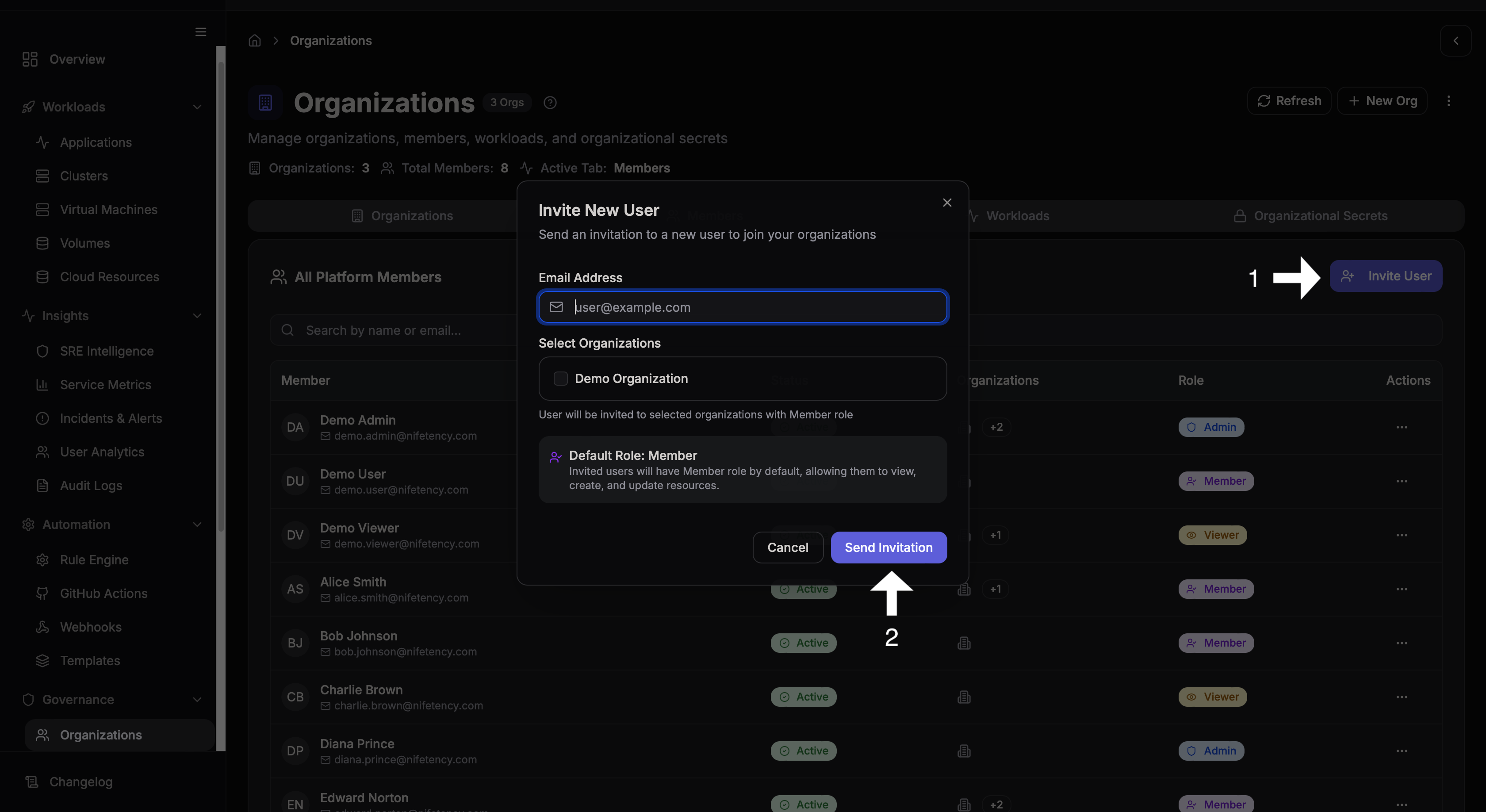
You can invite new users directly from the Members page.
Steps to Invite a User
- Click Invite User
- Enter the Email Address
- Select the Organization
- Review the default role (Member)
- Click Send Invitation
The invited user will receive a notification to join your organization. Their status will show as Invited until they accept.
Default Role
Invited users are assigned the Member role by default, which allows them to view resources and create and update workloads. You can change the role at any time from the Actions menu.
Managing Members
From the Actions menu you can:
- Change role — Promote to Admin or downgrade to Viewer
- Remove user — Revoke access from the organization
- View details — See full profile, email, and activity
Removing a member revokes their access immediately but does not delete their platform account.
Search Members
Use the search bar to quickly find users by name or email address.
Best Practices
- Follow the principle of least privilege — assign the minimum role needed
- Audit members quarterly — remove inactive or departed users
- Limit Admin accounts — only grant Admin to those who genuinely need it
- Document access decisions — track who has what role and why