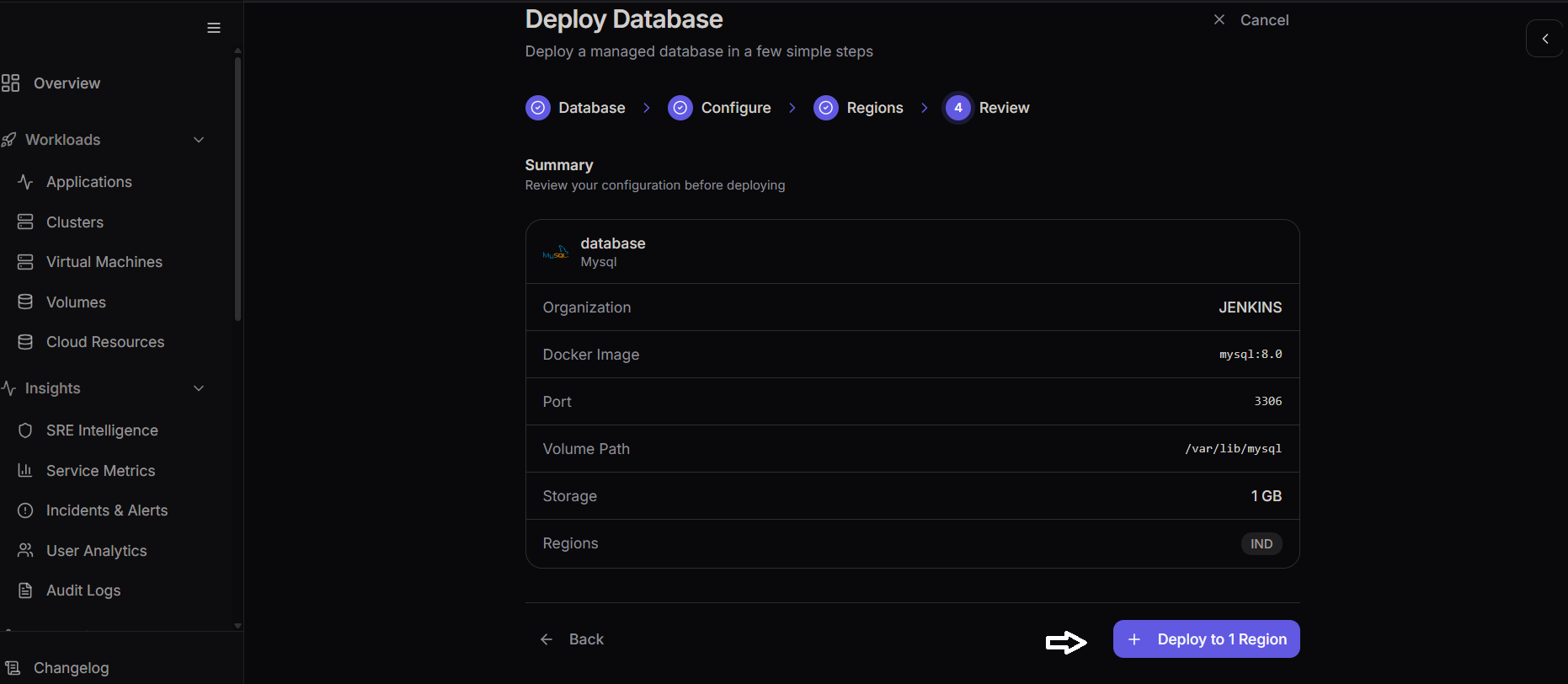
Deploy Database
The Deploy Database method allows you to deploy and manage a database directly from the platform. This provides a robust, managed backend for your applications.
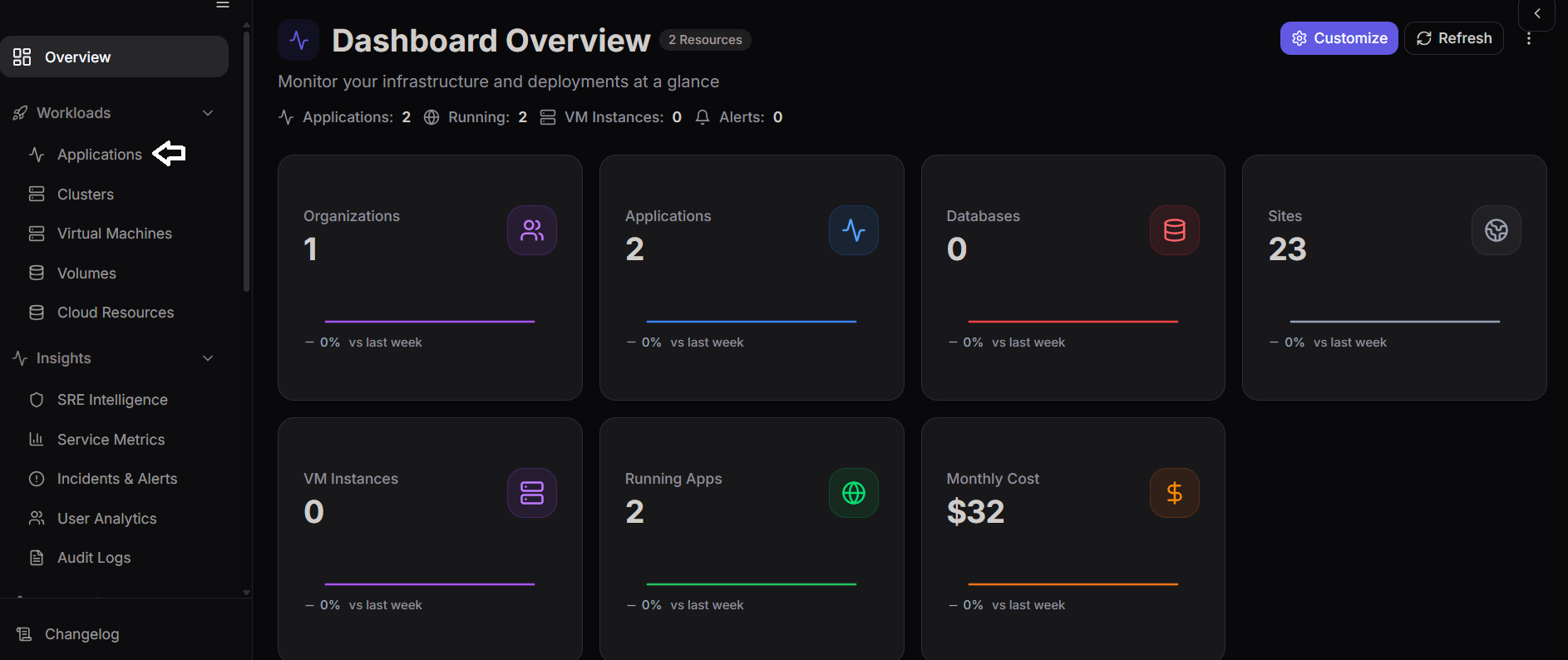
Step 1: Navigate to the Database Section
From the dashboard, navigate and select Database from the sidebar.
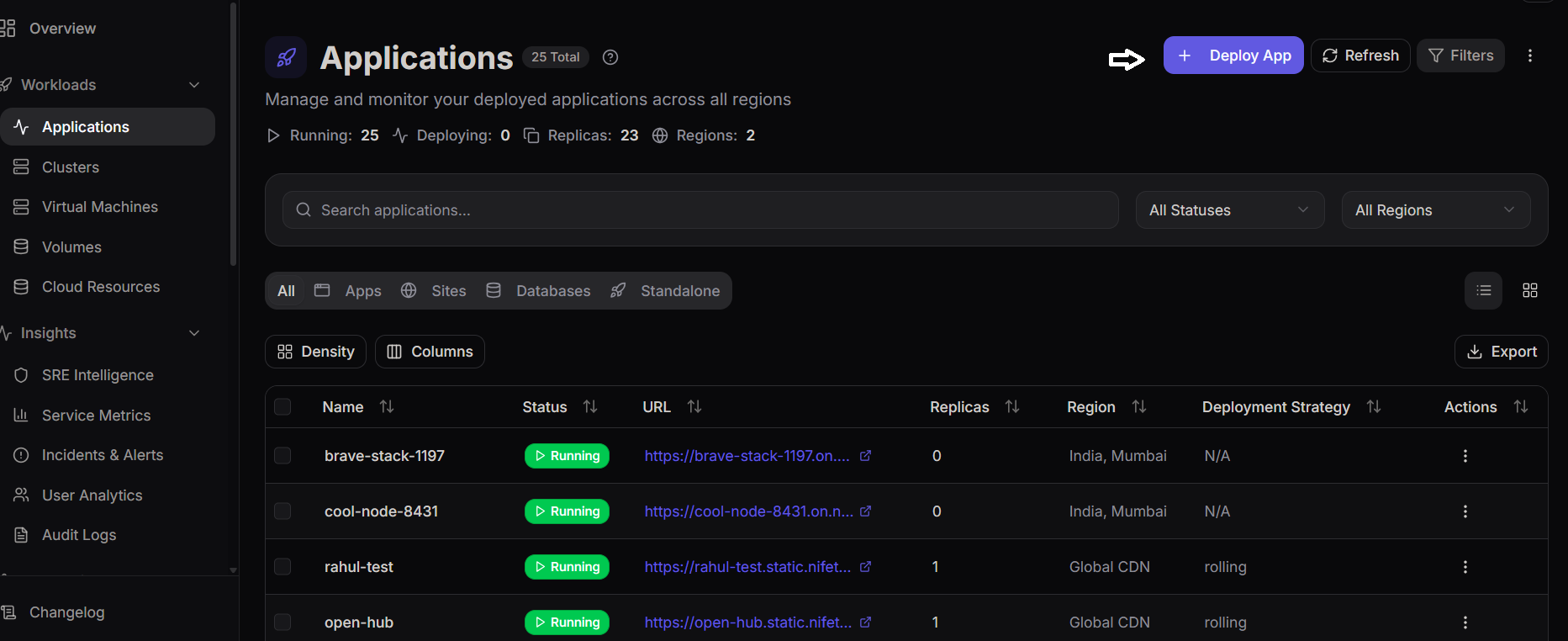
Step 2: Deploy New Database
Click on the Create Database or Deploy Database button to initiate the database creation process.
Step 3: Select Organization
Choose the organization under which the database will be created.
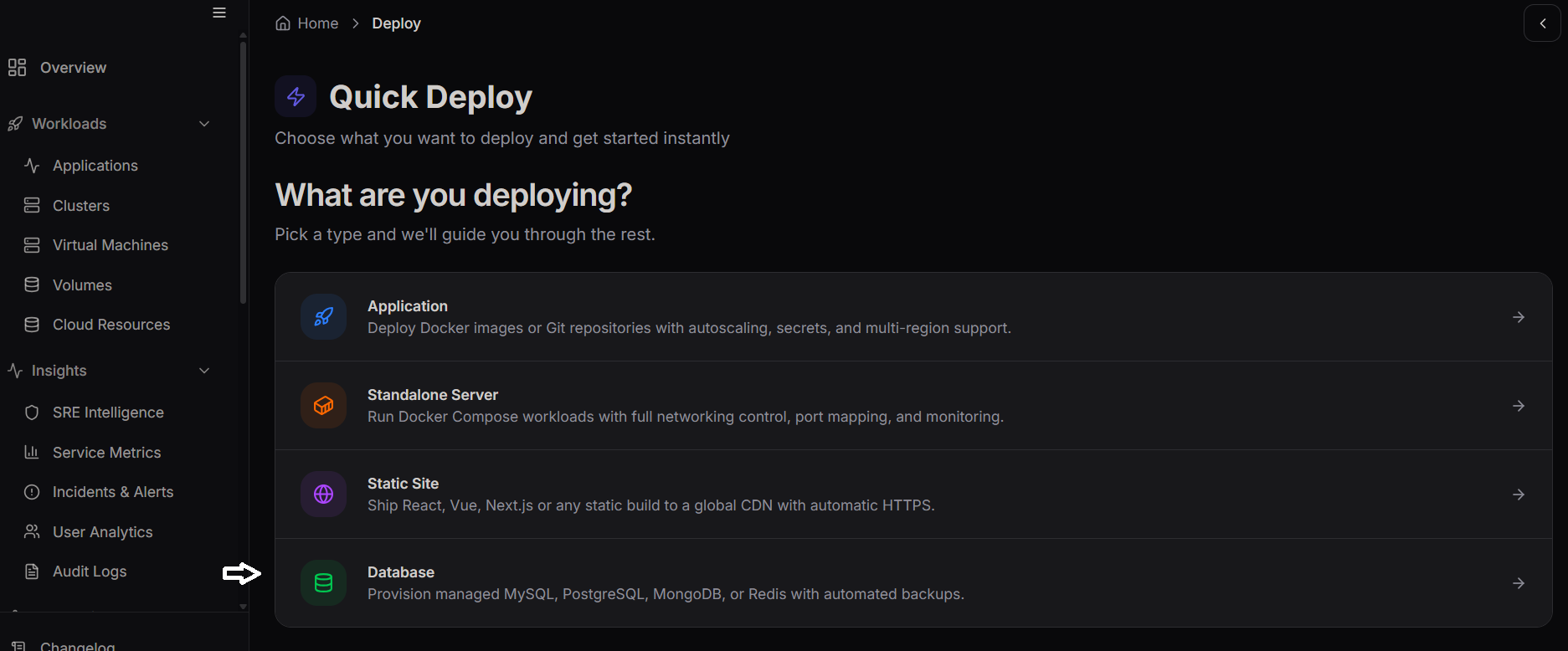
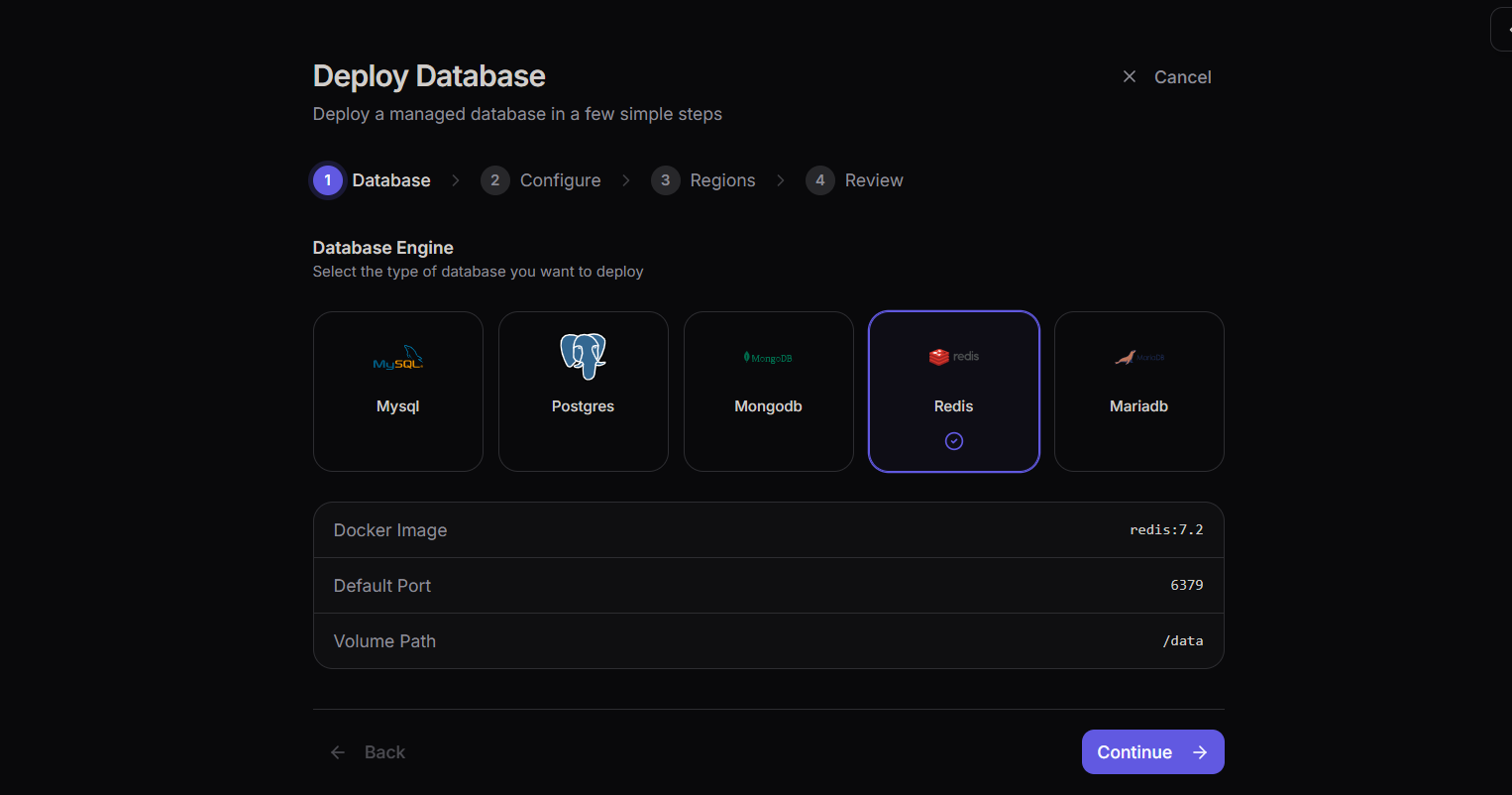
Step 4: Choose Database Type
Select the type of database you want to deploy from the available options (e.g., PostgreSQL, MySQL, MariaDB, MongoDB, Redis).
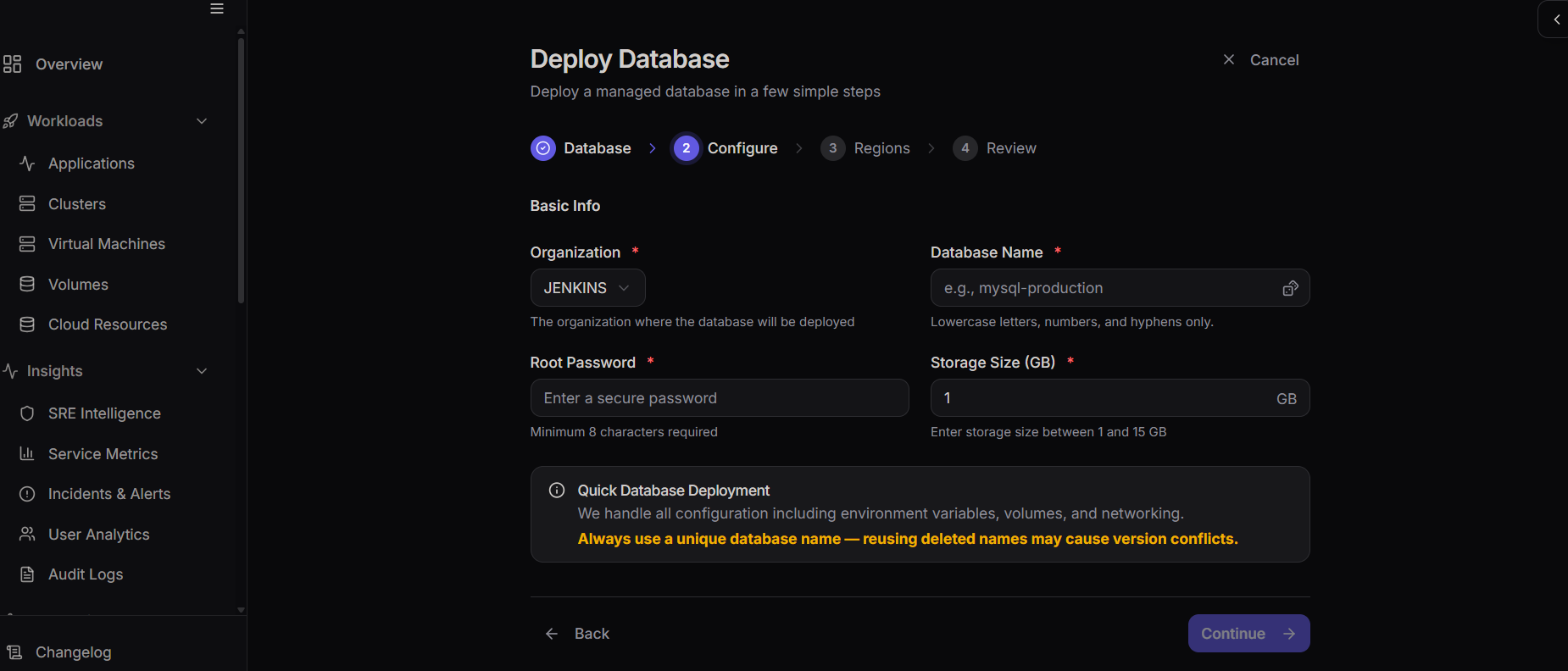
Step 5: Configure Database Details
Provide the required configuration details such as the database name, username, password, and storage size.
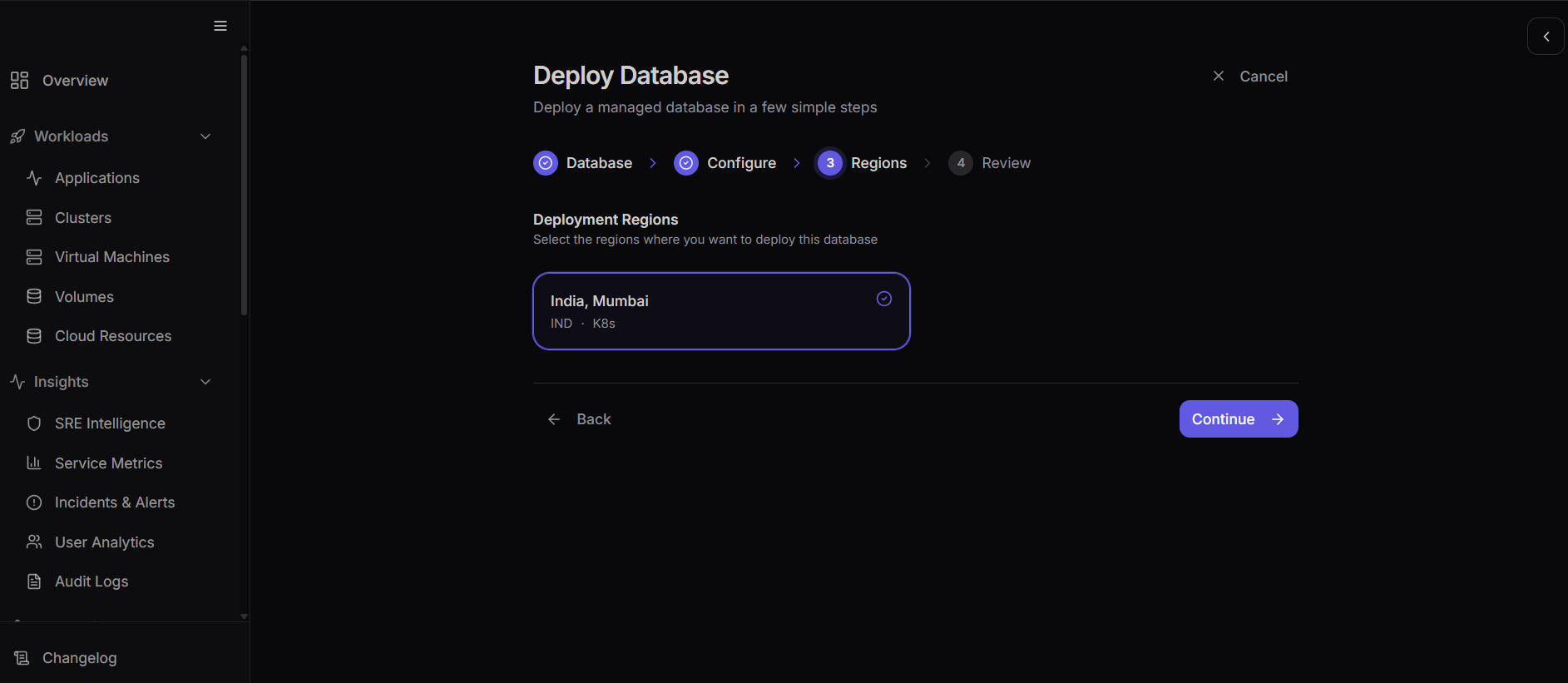
Step 6: Specify Regions and Resources
Select the geographic deployment region and confirm your resource allocation limits.
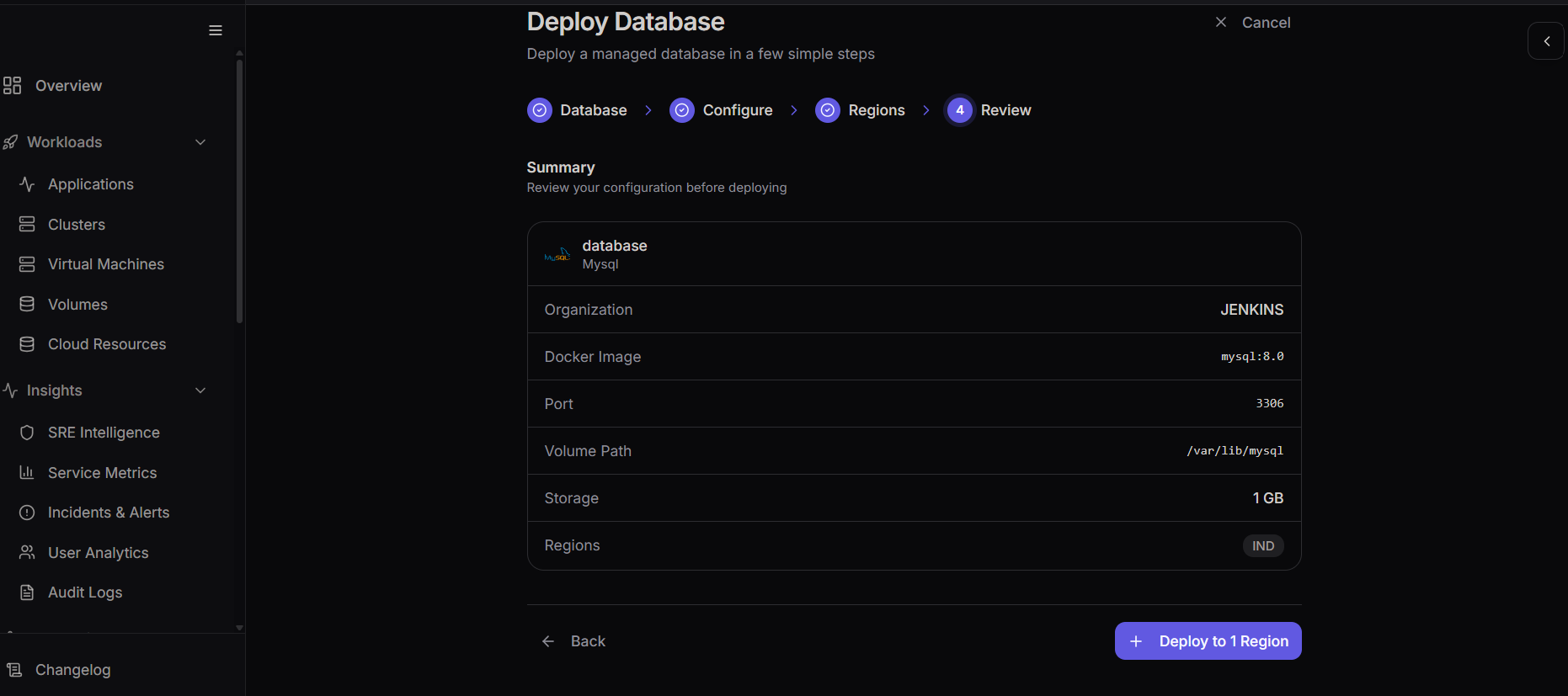
Step 7: Review Database Configuration
Before proceeding, review the summary page to ensure all your selected options and configurations are correct.
Step 8: Deploy Database
If the configuration looks good, click the Deploy Database button. Wait for the provisioning process to complete, after which your database will be active.