Signing in
If you are already registered, then use Sign in from the website and you land on the UI page.
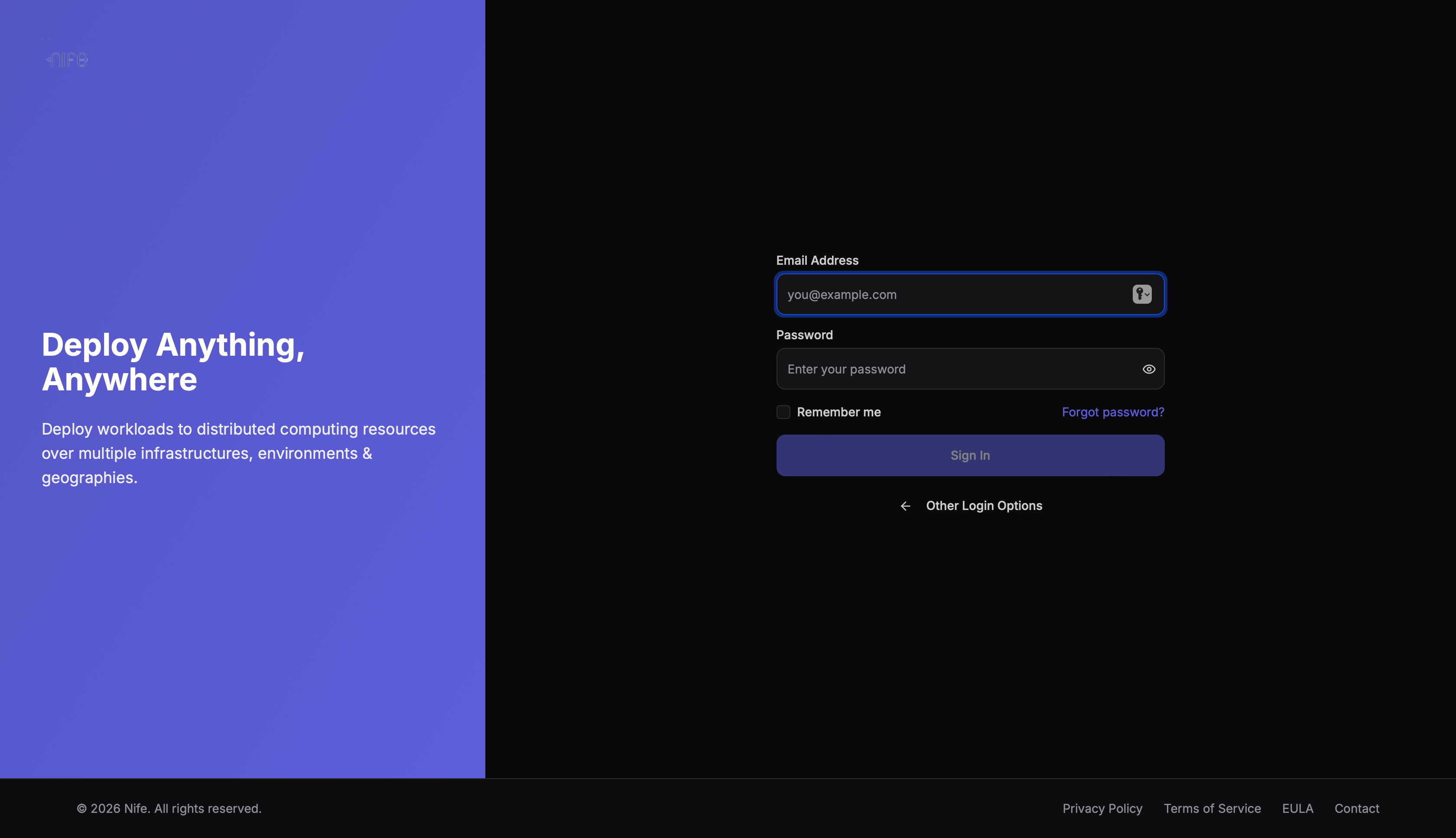
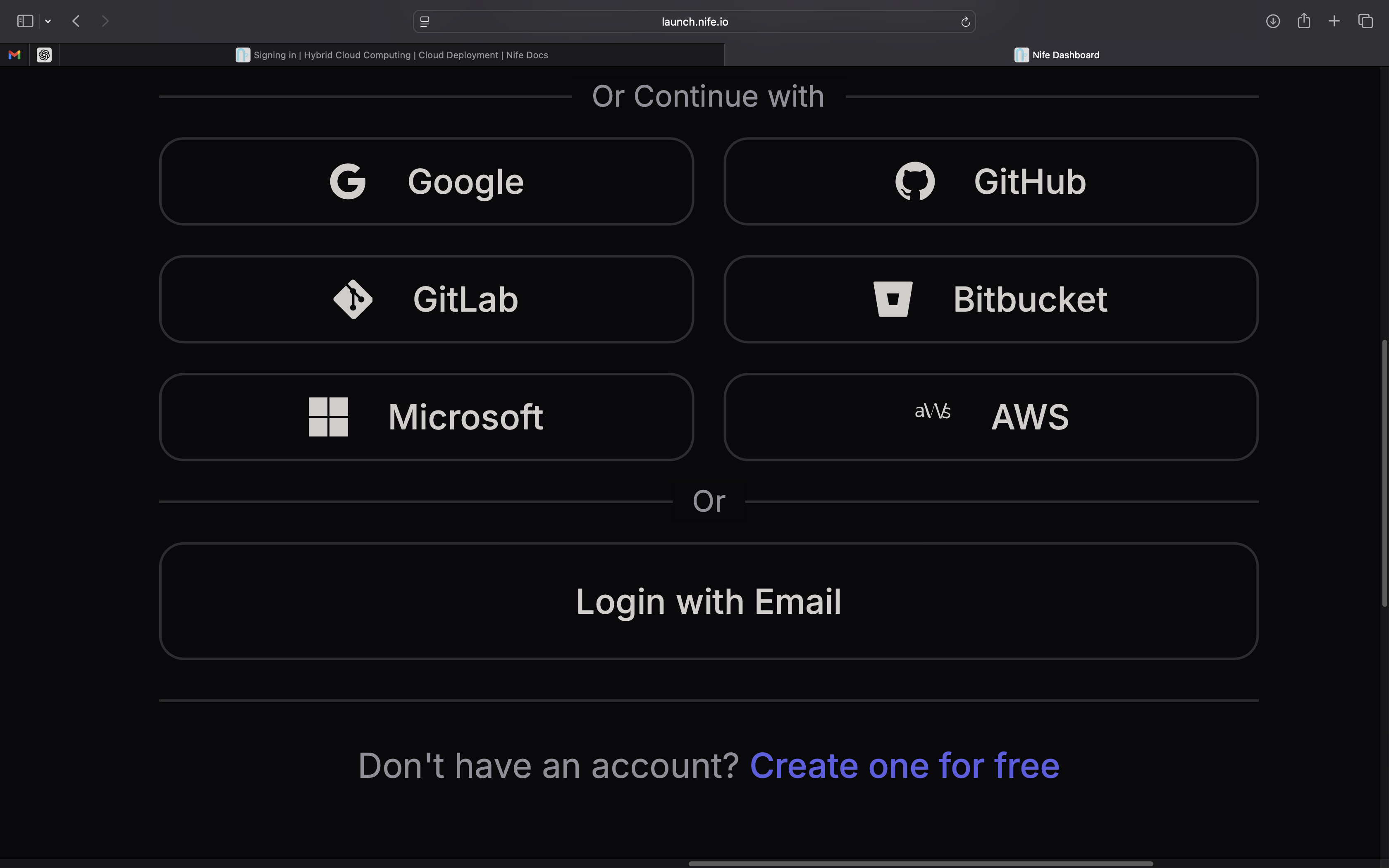
You may sign in using a custom email and password or using Google, GitHub, GitLab, Microsoft and AWS.
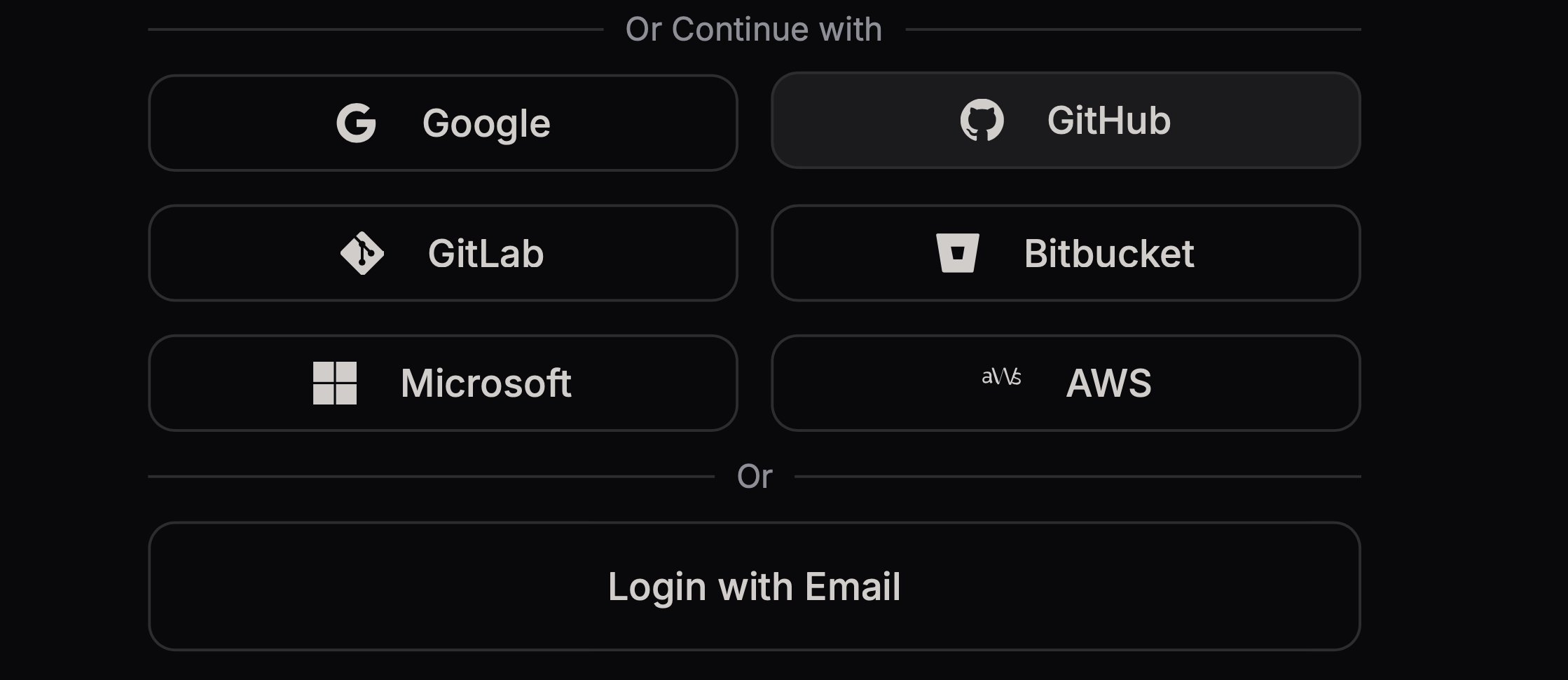
Note: The login from SSO works only if you have valid credentials on the Platforms.
Signing in using Google
To sign in using Google, click on the Google icon on the sign-in page.
Then enter your Google credentials starting from you email.
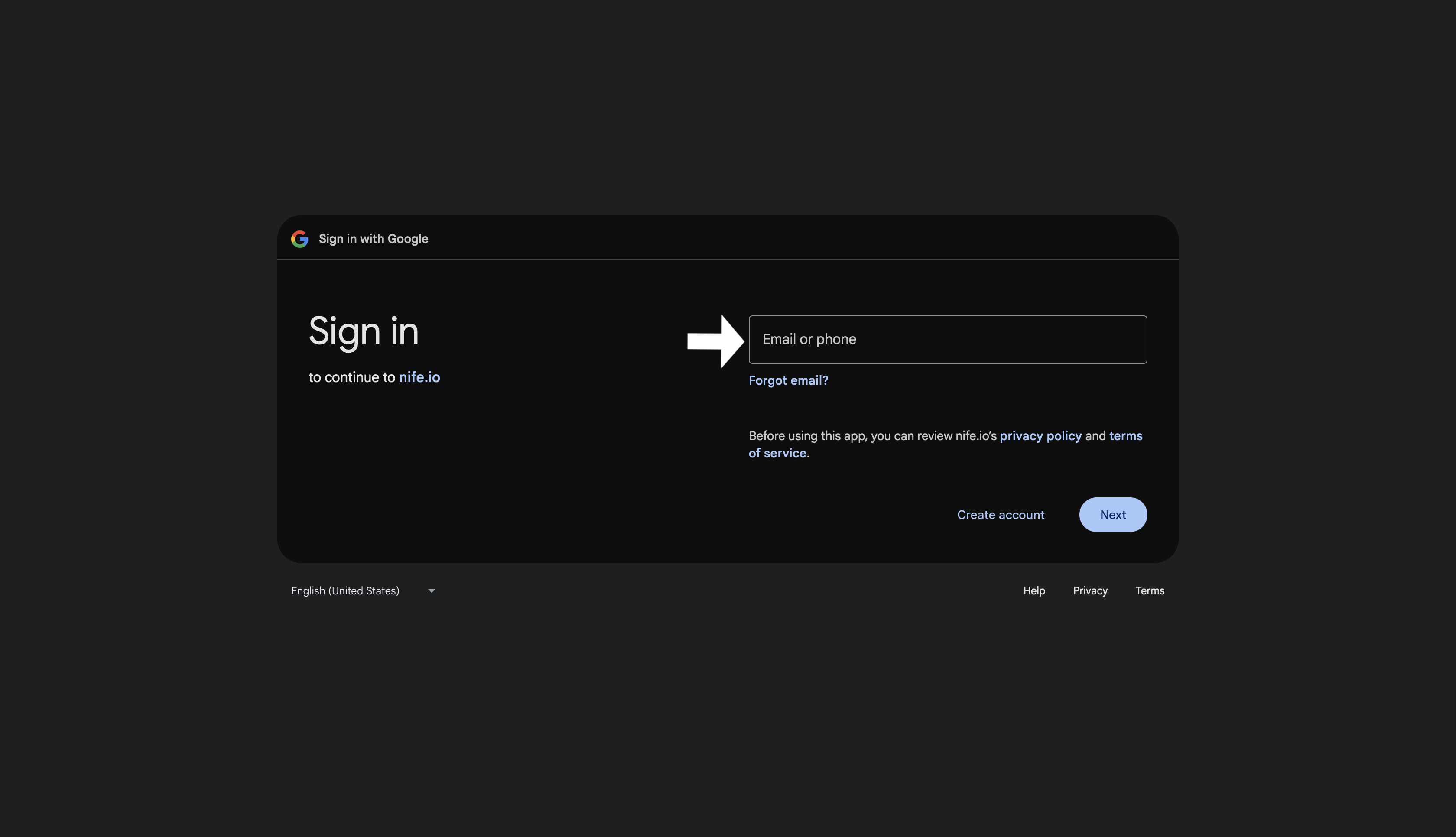
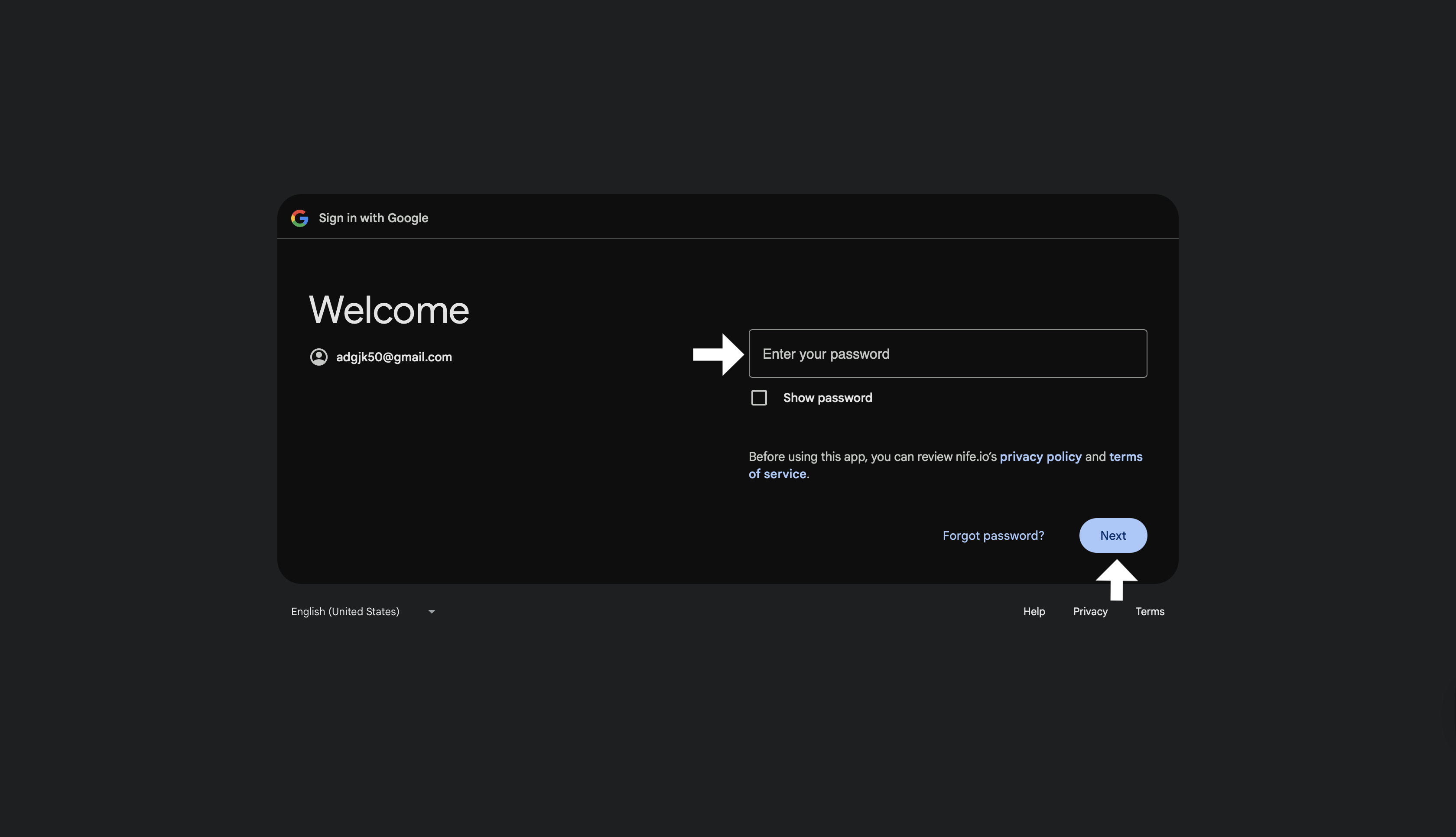
Then after entering click on Next, which will take to the next page where we are supposed to enter our password.
Signing in using GitLab
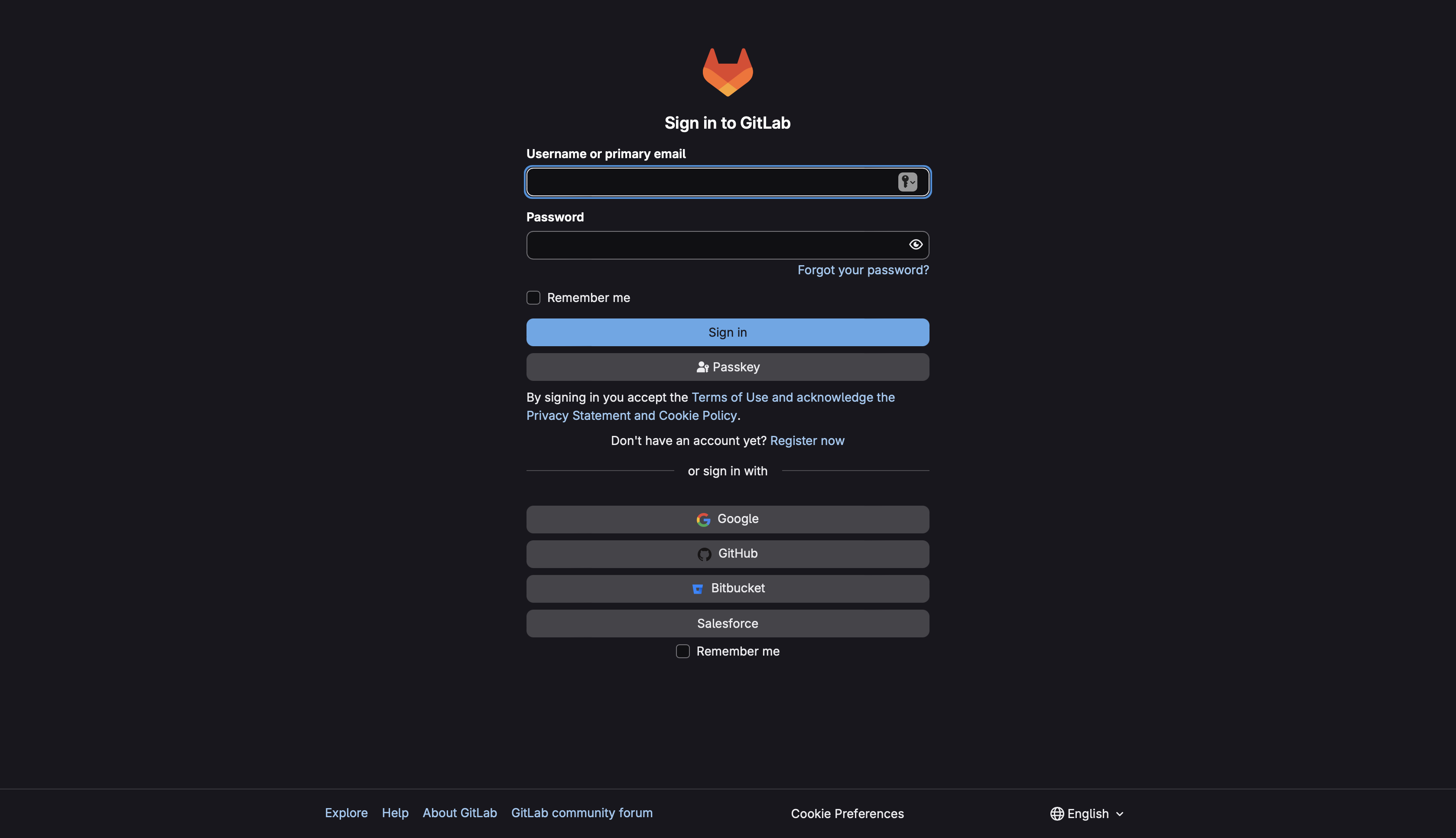
Users can also authenticate using their GitLab account.
Steps:
- Click GitLab on the login page.
- The GitLab authentication page will open.
- Enter your GitLab credentials.
- Click Sign in to continue.
- After successful authentication, you will be redirected to the Nife platform.
Signing in using BitBucket
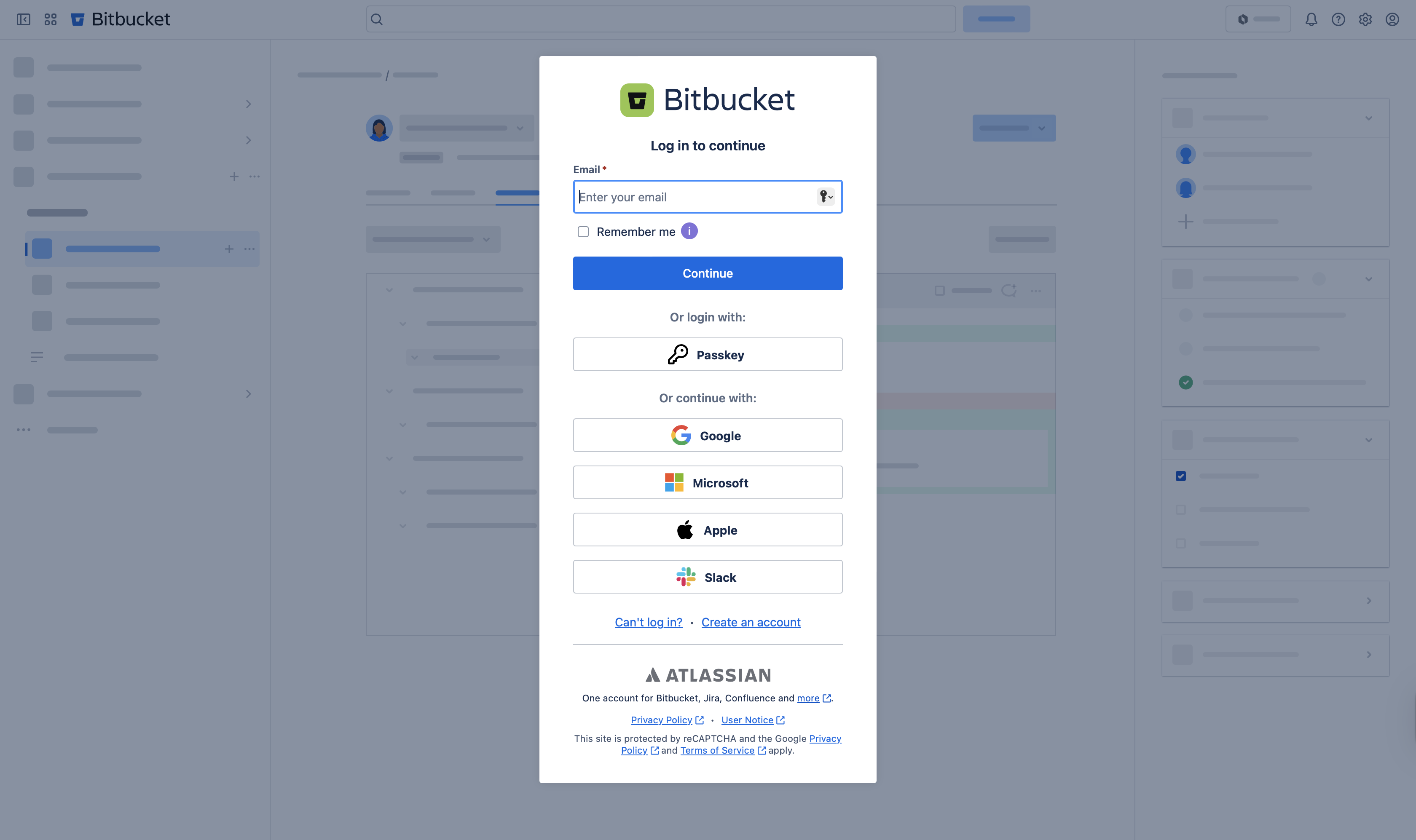
To sign in using git bucket click on the *BitBucket icon on the sign in page.
This will redirect you the respective page where we are supposed to enter the Emai and password else also sign in using an security PassKey.
Signing in using Microsoft
You can sign in using your Microsoft account.
Steps:
- Click Microsoft on the sign-in page.
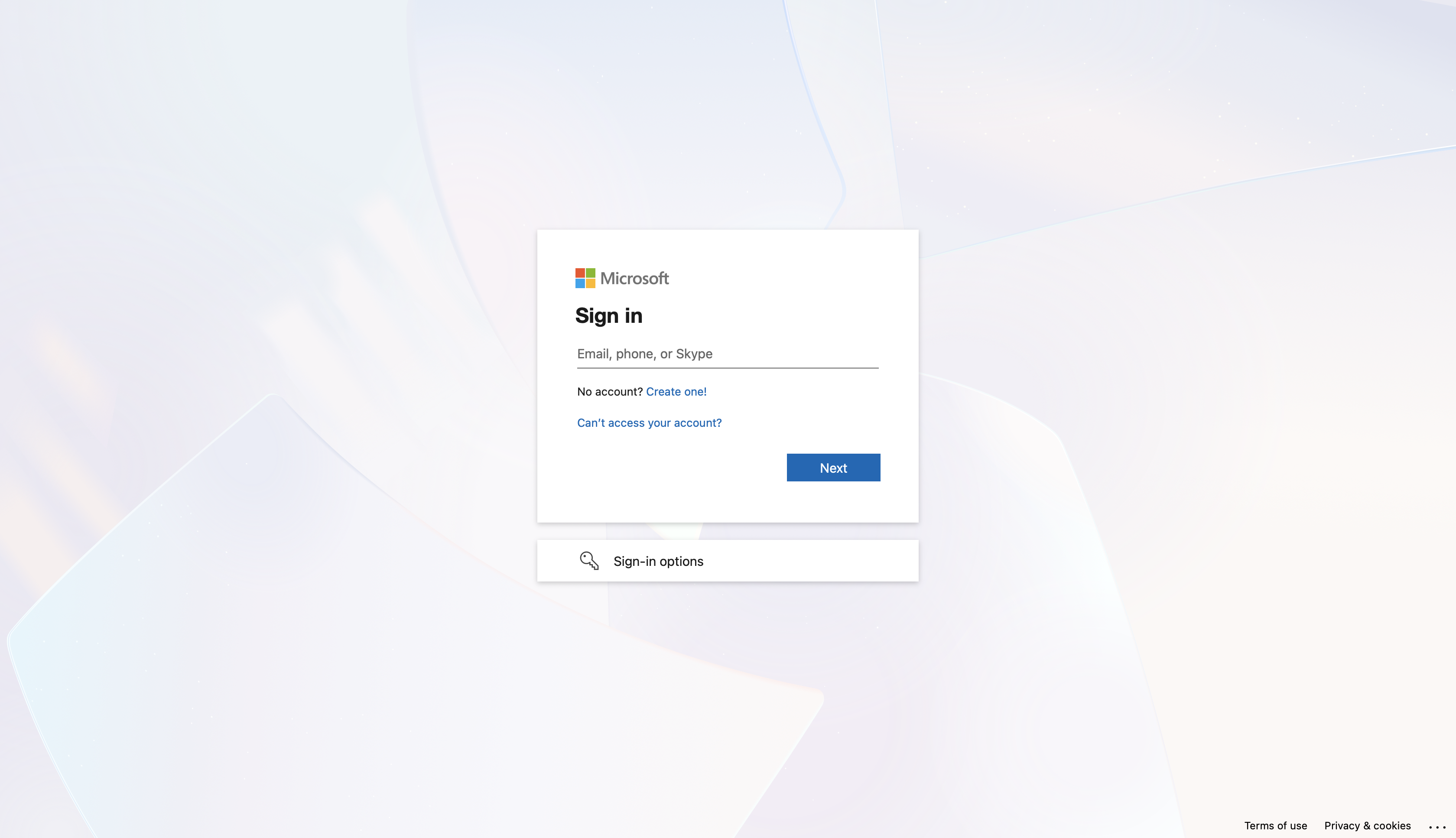
- Enter your Microsoft email address.
- Choose one of the available authentication methods.
Method 1: Sign in using verification code
- Click Send code.
- Enter the verification code sent to your email.
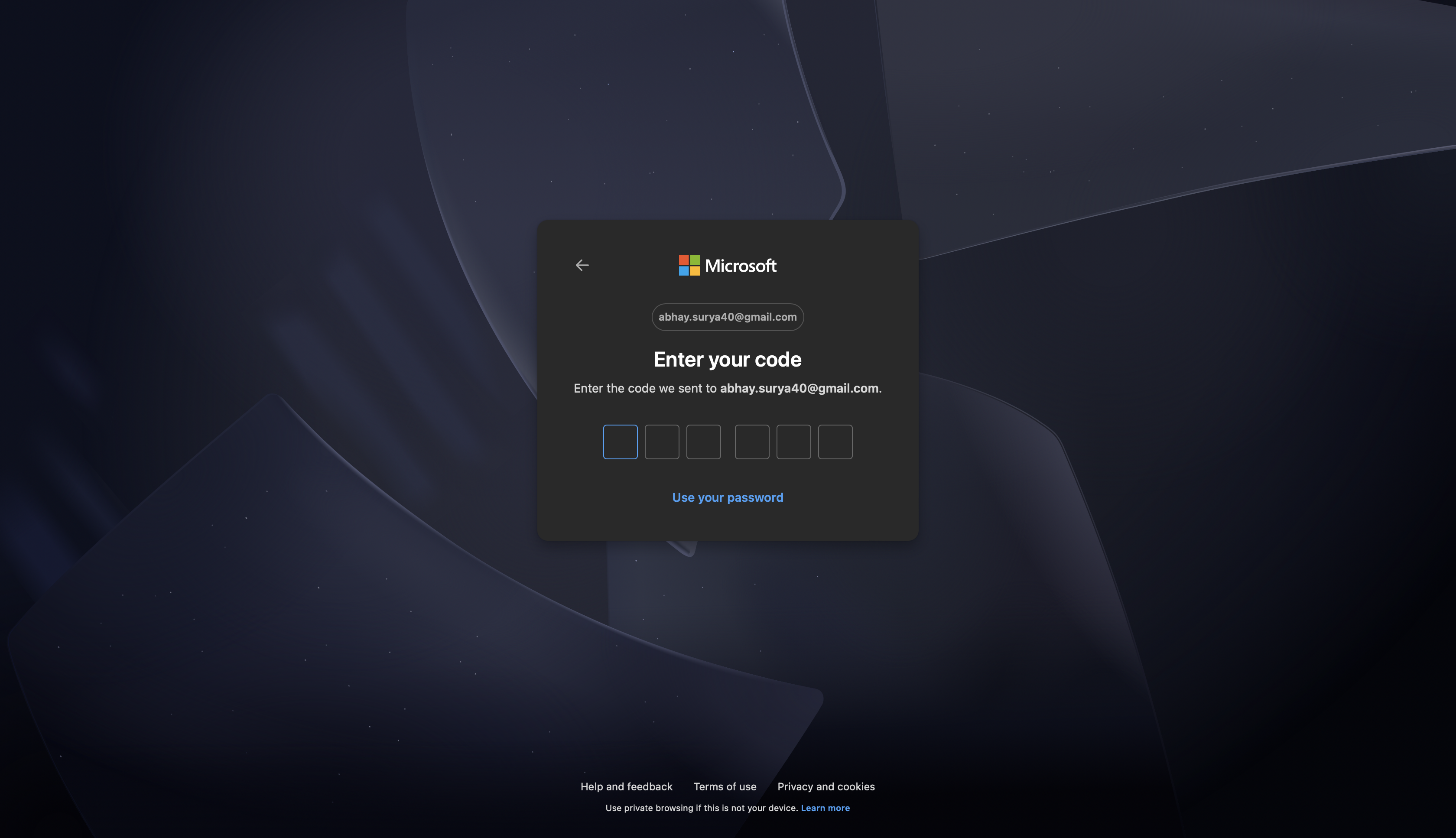
- Click Sign in to continue.
Method 2: Sign in using password
- Enter your Microsoft account password.
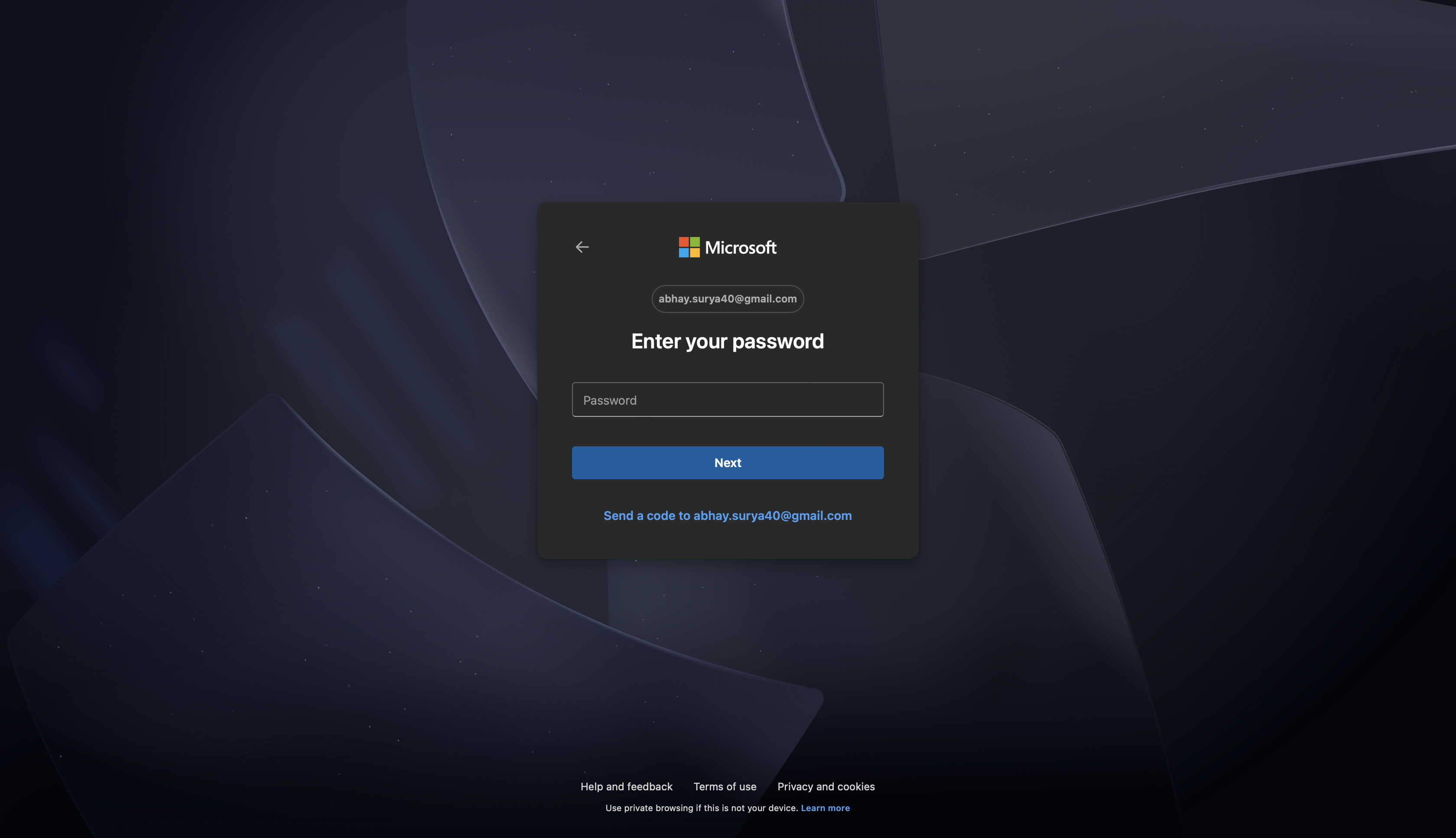
- Click Sign in.
- After authentication, you will be redirected to the Nife dashboard.
Signing in using AWS
You can also authenticate using your AWS account.
Steps:
- Click AWS on the sign-in page.
- Enter your AWS username.
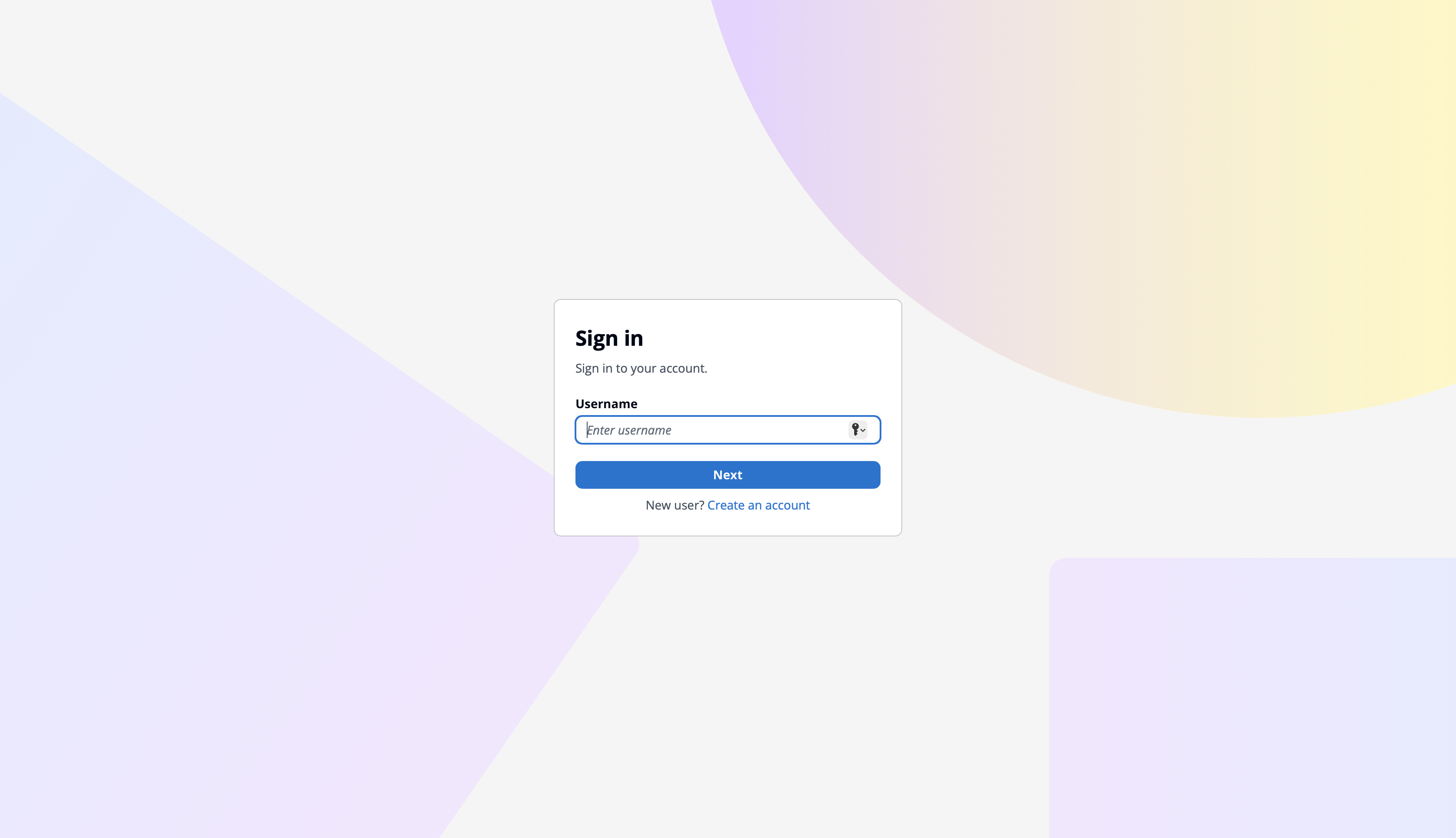
- Enter your AWS password.
- Click Sign in.
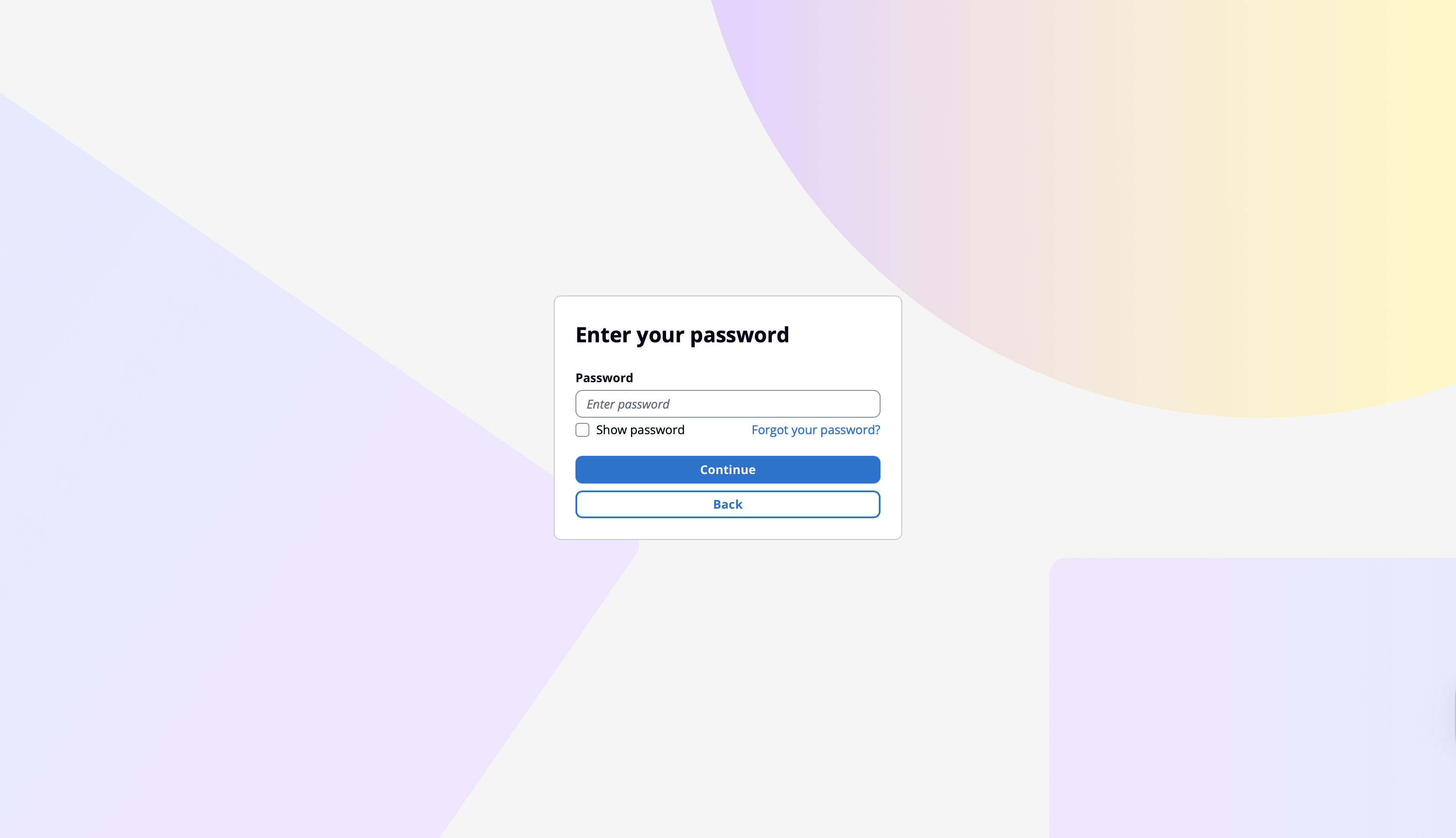
- After successful authentication, you will be redirected to the Nife dashboard.
Creating a New AWS Account
If you do not already have an AWS account, you can create one from the AWS login page.
Steps:
- Click Create a new AWS account.
- Follow the registration process by entering the required account details.
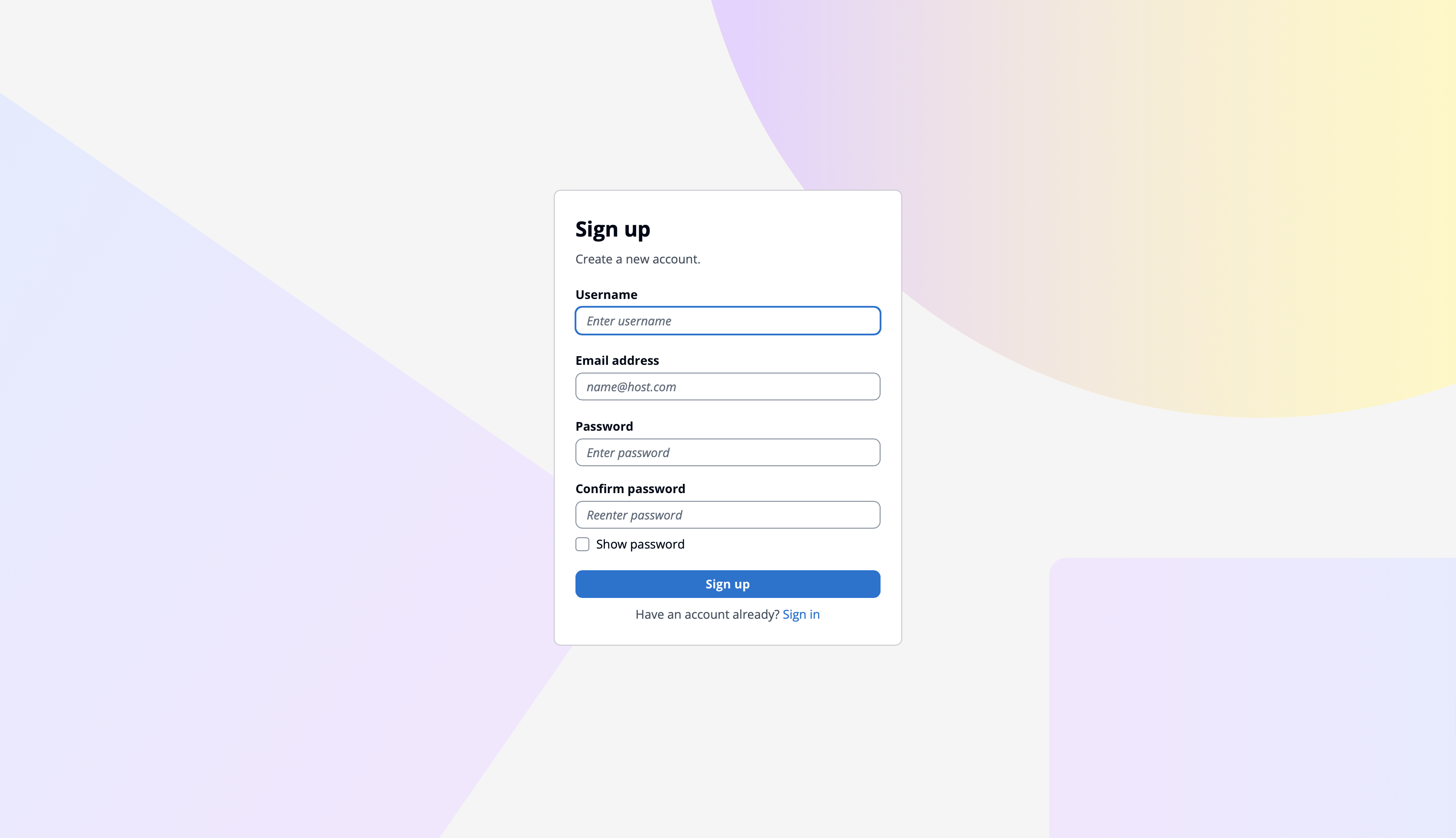
- After creating the account, return to the Nife sign-in page and log in using your new AWS credentials.
Creating a New Nife Account
If you do not already have an account, you can create one directly from the login page.
Steps:
- Click Create one for free.
- Enter the required account details and credentials.
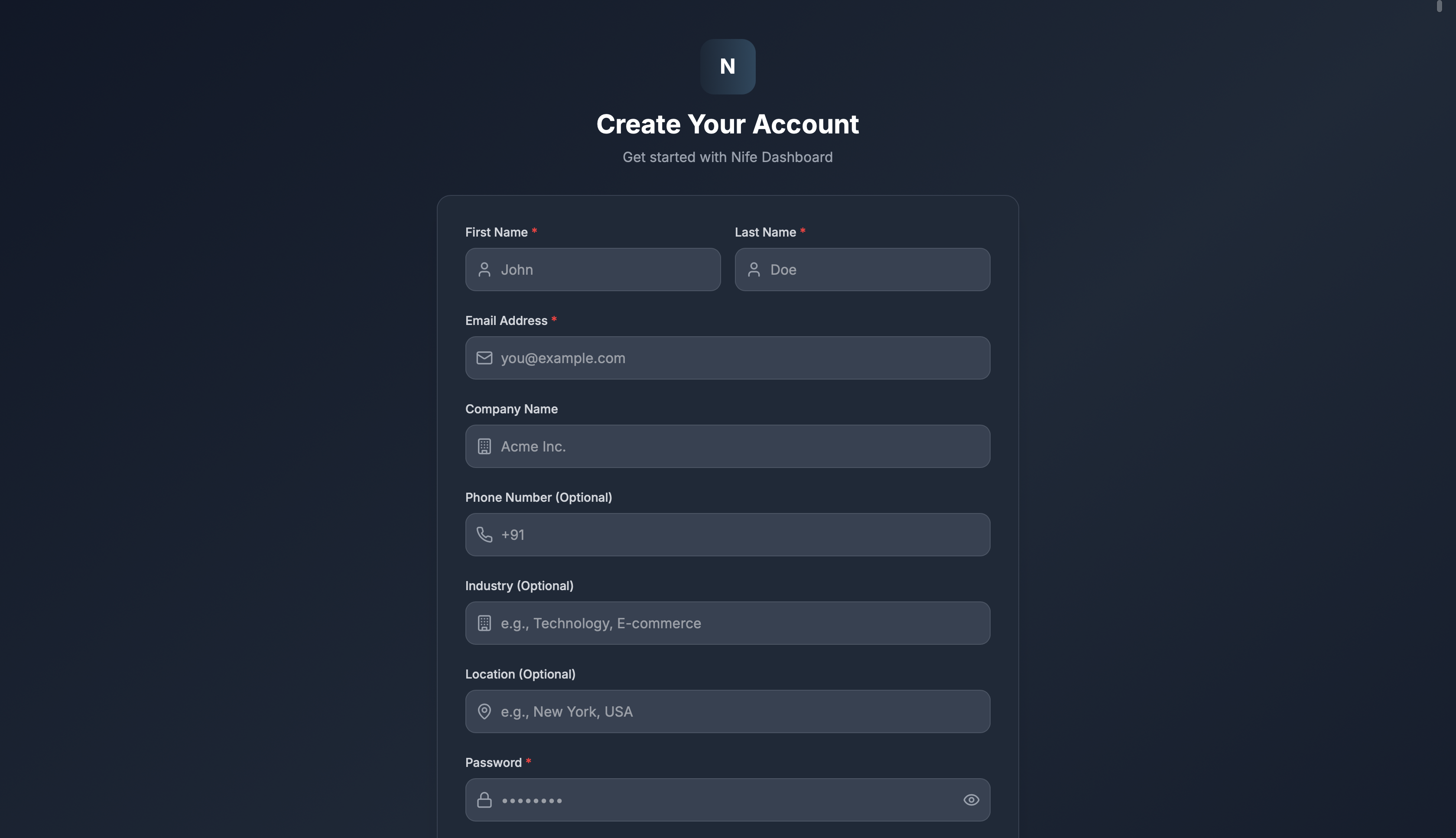
- Complete the registration process.
- Once the account is created, you can sign in and start using the Nife platform.