Organizations
Organizations help you group and manage multiple applications within a single workspace.
They are useful when a company needs separate environments for different teams, departments, or projects.
For example, a company may have separate organizations for marketing, engineering, and finance, each managing their own applications and deployments.
Viewing Organizations
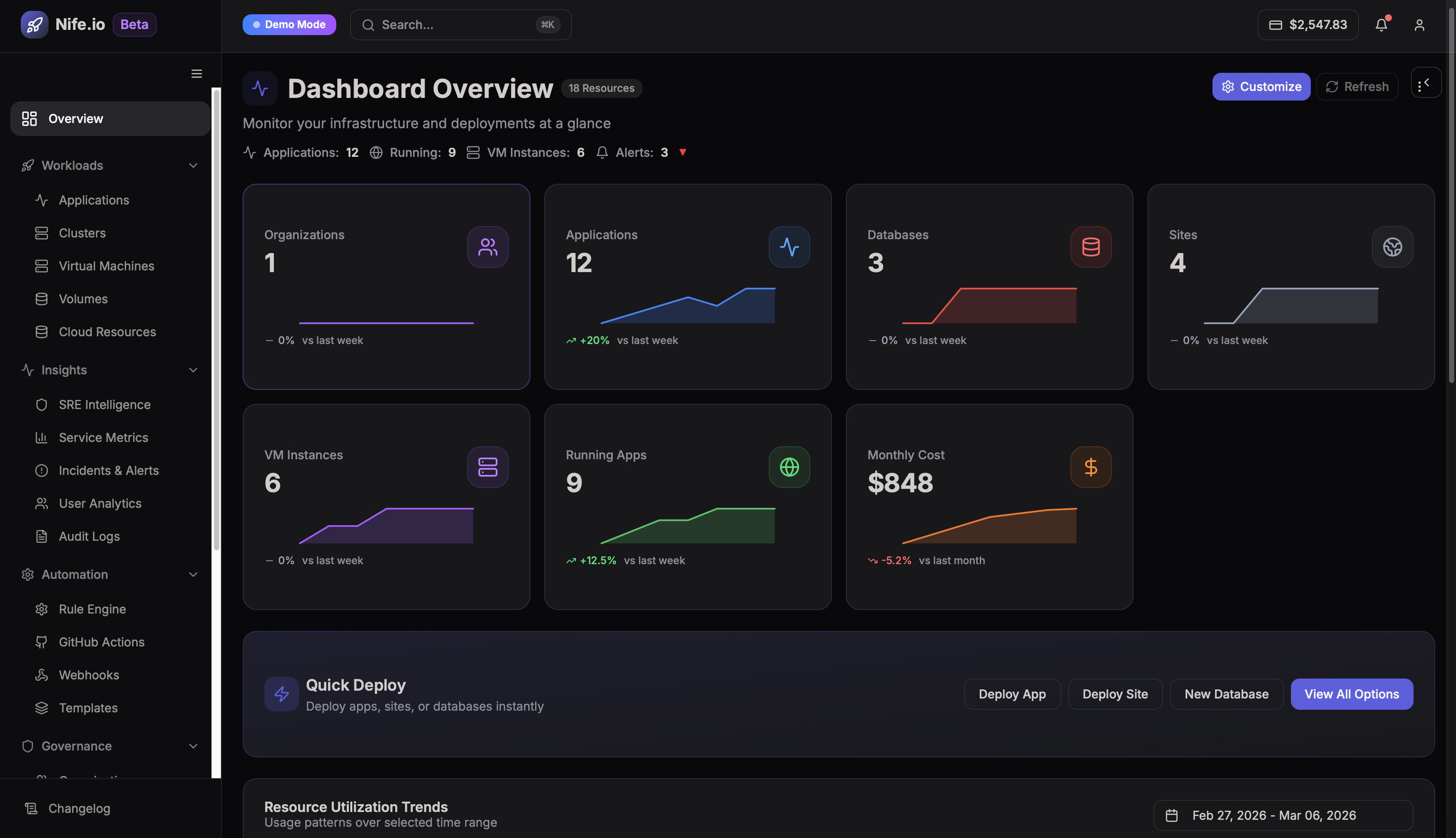
The Organizations page displays all organizations associated with your account.
Steps:
- Log in to the Nife platform.
- From the left navigation menu, click Organizations.
- The Organizations page will display a list of available organizations.
You will be able to view details such as:
- Organization name
- Associated regions
- Available actions
- Total number of organizations
Creating an Organization
You can create a new organization to manage applications and deployments.
Steps:
- Navigate to the Organizations page.
- Click + Create Organization.
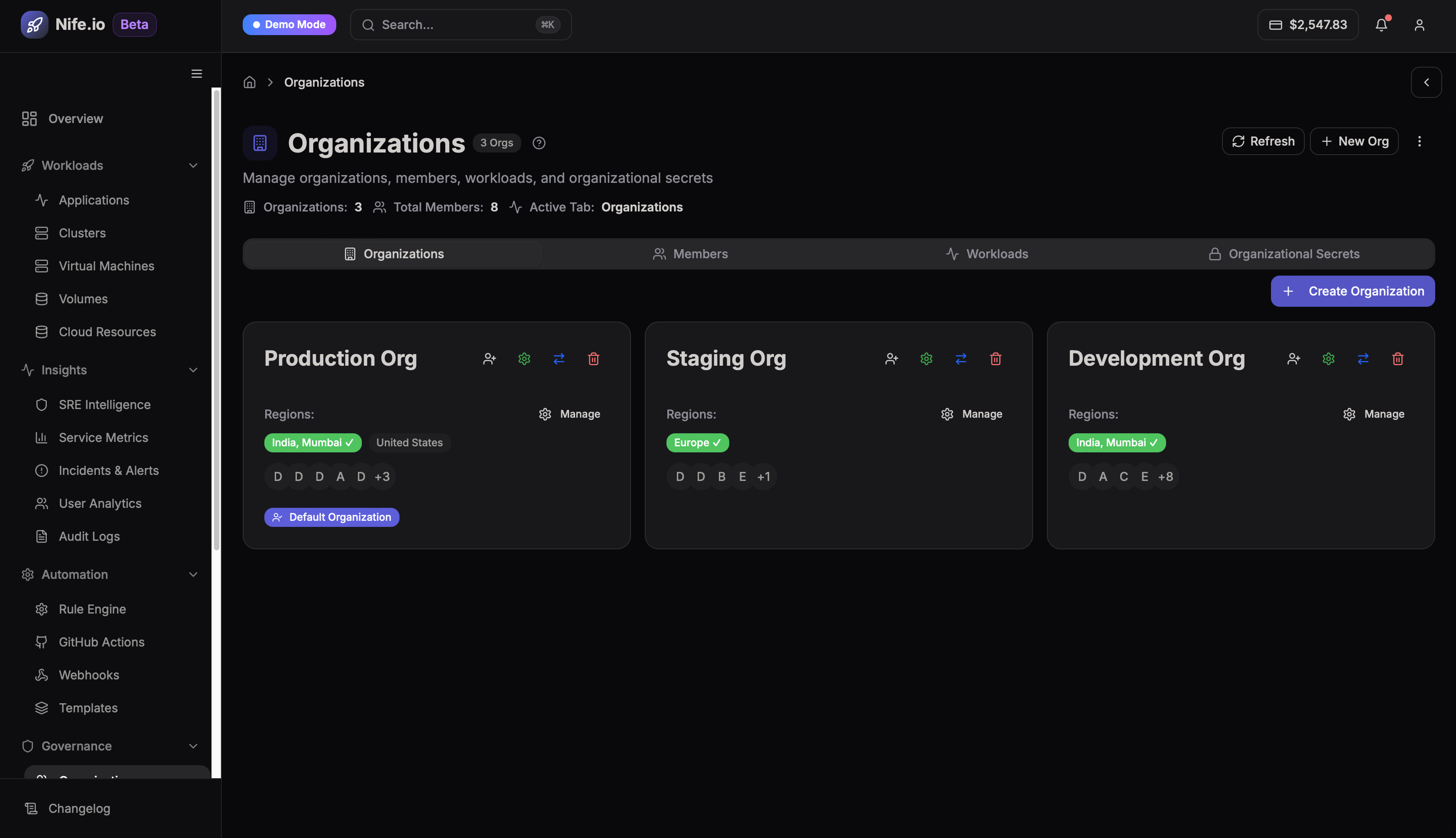
- Enter the name of the organization.
- Click Create.
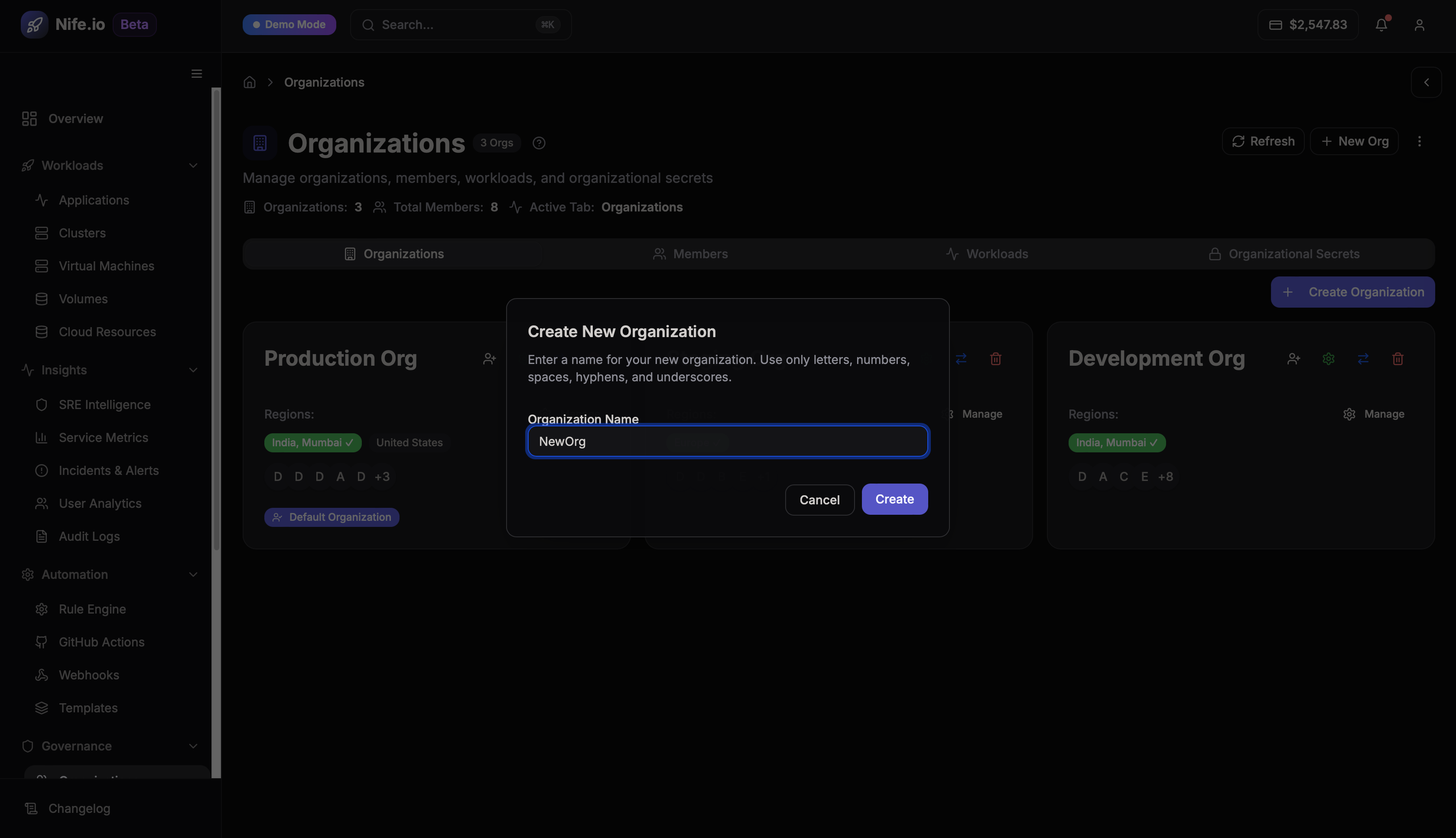
Once created, the organization will appear in the Organizations list.
Managing Organizations
From the Organizations page, you can manage existing organizations.
Available management options include:
- Editing organization details
- Creating Sub-Organizations
- Creating Business Units
- Managing regions and configurations
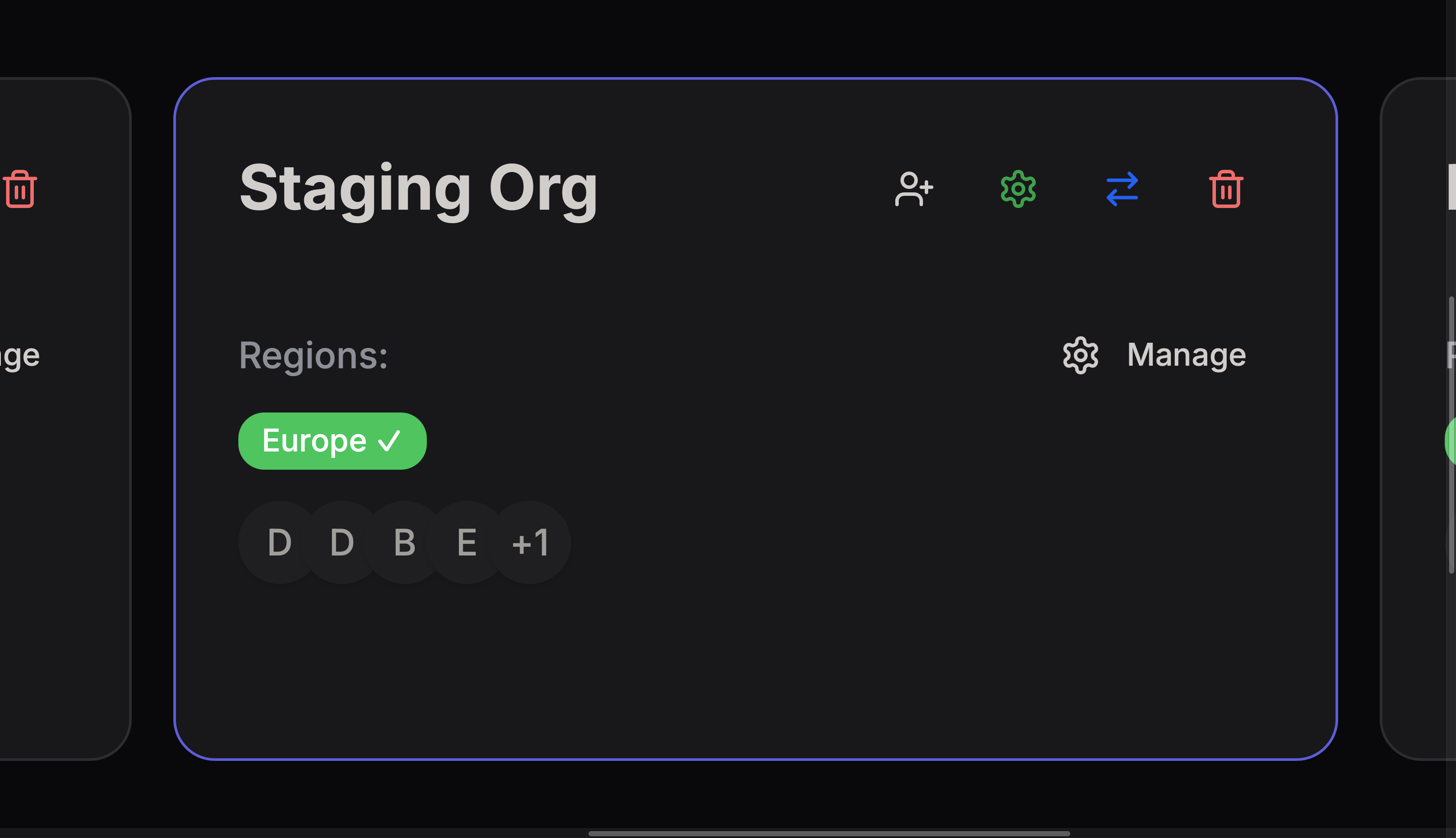
Click the three-dot menu (...) next to an organization to view the available actions.
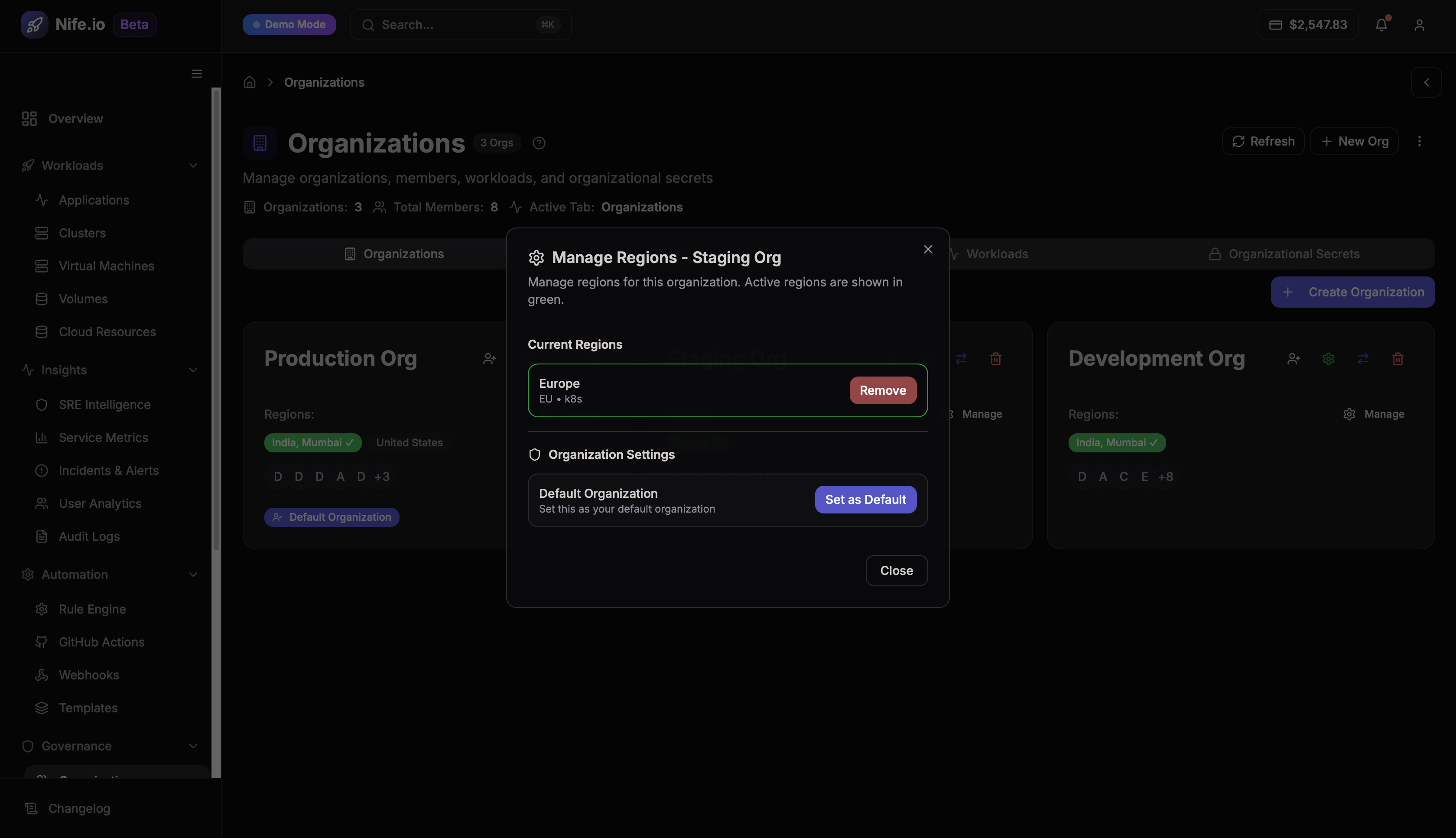
Setting a Default Organization
A default organization is automatically used during deployments if no organization is selected.
Steps:
- Navigate to the Organizations page.
- Look for the settings button on desired organization for example Staging Org in this case.
- Click on Set as Default button under Organization Settings.
- Choose the default region.
Notes
- Only one organization can be set as default at a time.
- The default organization is used for automatic deployments from the marketplace.
- A default organization cannot be deleted unless another organization is set as default.
Deleting an Organization
If an organization is no longer required, it can be deleted.
⚠️ Important: Deleting an organization will also delete all applications associated with it.
Steps:
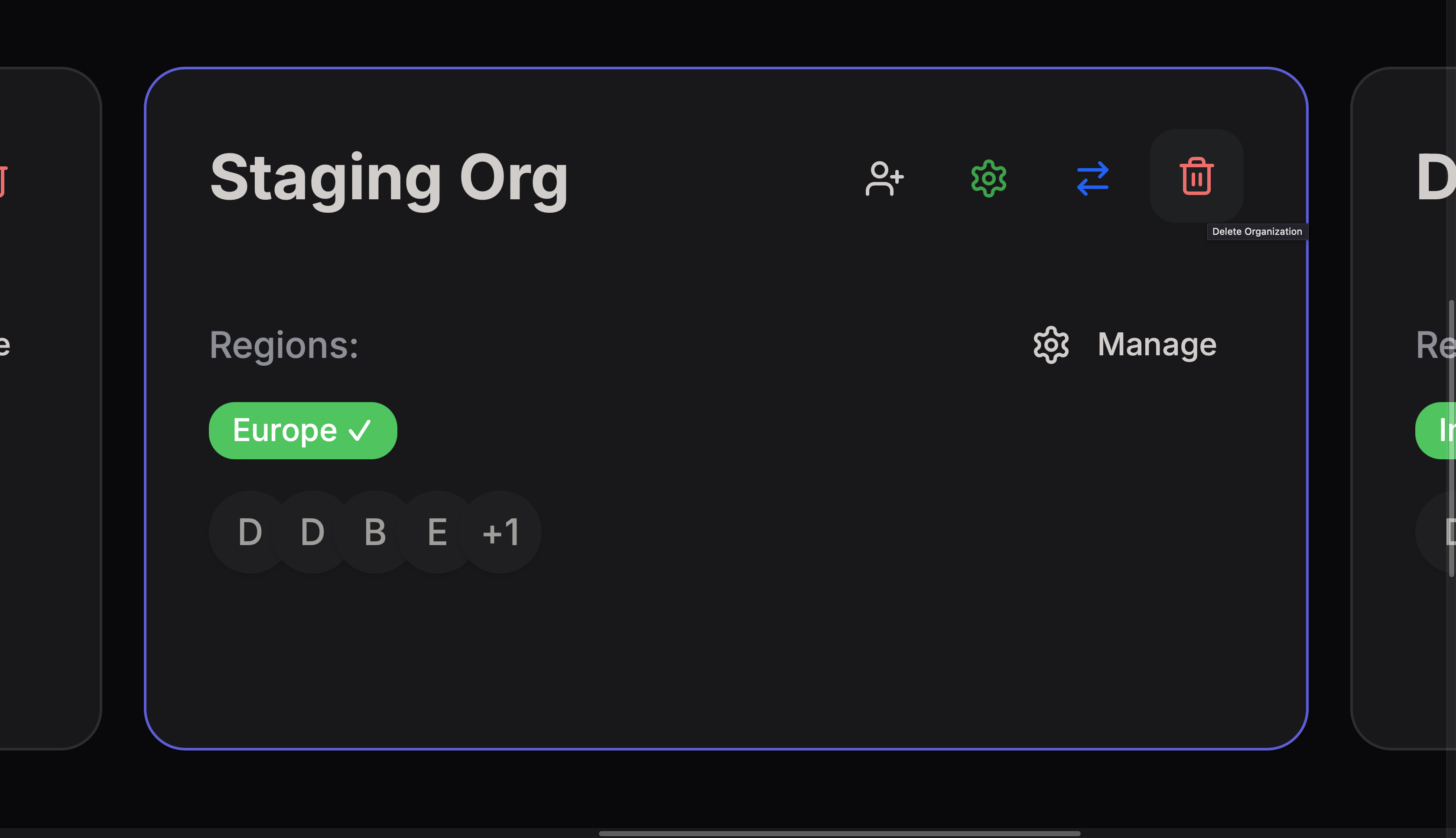
- Navigate to the Organizations page.
- Click the three-dot menu (...) next to the organization.
- Select Delete Organization.
- Enter the organization name to confirm deletion.
- Click Delete.
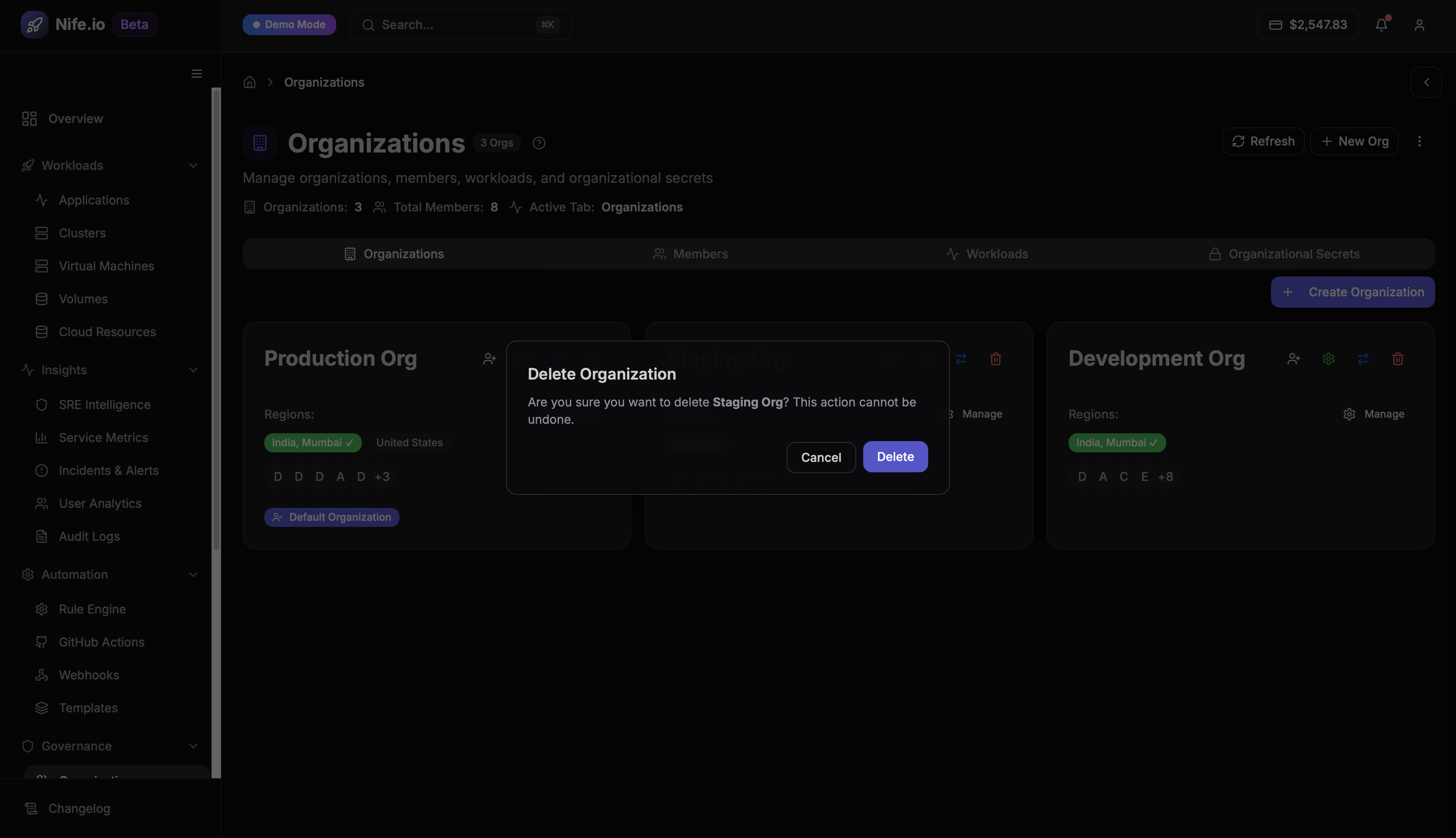
Once confirmed, the organization and its associated resources will be permanently removed.